

Play contacts with the new media player
IMPORTANT The information on this page is about the new media player. For information about the classic media player, go here: Play contacts in the classic media player.
How do I know which version of the media player I have?
If you see the Return to classic button in the upper-right corner of the page, you are in the new media player, and the information below applies to you.
If you see the Switch to new media player button, you are in the classic media player. Go here for information about the classic media player: Play contacts in the classic media player.
Prerequisites
- Your organization has one of the following licenses:
- Call Recording
- QM
- QM Intelligence
- You have the View Contacts permission.
- Some parts of the Media Player require additional licenses or permissions. The pages and procedures linked below mention these licenses or permissions when necessary.
Page location
Interactions > Double-click a contact
You can also open the Media Player by clicking a contact ID in one of these locations:
- The Agent Explorer page
- The Performance Management home page
- In Insights
- The AI Tags dashboard
- The Auto QM dashboard
- The Trending Topics dashboard
- The Details pane of an Analytics widget
Procedures
Add or remove panels in the media player
- Click the list icon
 near the center of the media player.
 -
To add a panel to the media player, select its check box. To remove a panel, clear its check box.

Resize sections in the media player
Click and drag the vertical or horizontal handles.

Click the Play button.

Play a contact faster or slower
Select a speed from the Playback Speed drop-down.

Click the Zoom In icon to see more detail in the Audio panel, Phrase hits panel, and Desktop panel.

Click the Zoom Out icon to return to the original level of detail.

View information about the agent who handled the contact
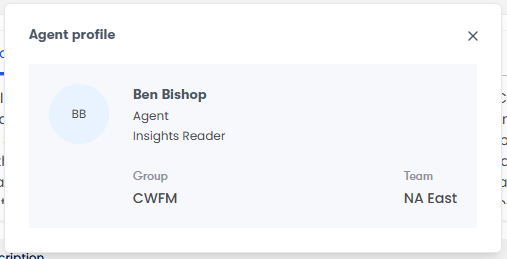
Click the agent’s name in the upper-left corner of the page. The Agent profile card opens, showing the agent’s assigned roles and their team and group.
View the media player and the Interactions page side by side
Click the Compact View icon ( upper-right corner of the page) to make the media player smaller and reveal the Interactions page.
To return to the full-size media player, click the Full View icon. 
Marking contacts for training allows you to easily find these contacts later to use as training examples. You need the Mark for Training permission to do this.
NOTE Marking contacts does not automatically send contacts to a training system. What happens with these contacts depends on how your organization uses Calabrio ONE.
- Click the Options icon
 (upper right corner of the page).
 - Select Mark for Training.
Marking contacts for HR allows you to easily find these contacts later to escalate to human resources. You need the Mark for HR permission to do this.
NOTE Marking contacts does not automatically send contacts to an HR system. What happens with these contacts depends on how your organization uses Calabrio ONE.
- Click the Options icon (upper right corner of the page).
- Select Mark for HR.
When multiple agents handle the same customer contact (for example, when one agent transfers the call to another agent), Calabrio ONE creates a separate contact for each agent involved and gives these contacts the same associated contact ID.
-
To move to contacts related to the one currently open, click Next associated contact
 and Previous associated contact
  .
.
-
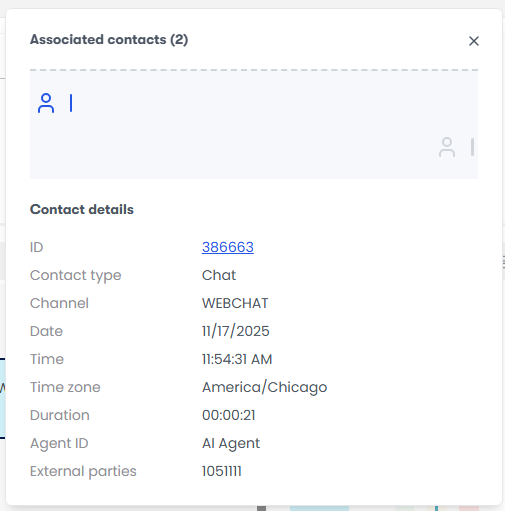
To view details about associated contacts, click [Number] associated contacts.
 The Associated contacts window opens visualizing all the different contacts that are part of this conversation in chronological order, with the contact you have open in blue.
 - To view details about the associated contacts, click a person icon.
- To open an associated contact in the media player, click the ID.
NOTE Associated contacts might not align correctly. For example, the system clock time on each PC with Smart Desktop can vary if the desktops are not syncing to the same time server. The system clock time can also vary on each PC between syncs to the same time server.
You might not be able to play back some associated contacts. This is due to various reasons:
- They are not within your scope. This is usually because you don't have scope over the agent who handled them.
- They were deleted.
- They did not meet workflow criteria to be recorded.
- They were under the minimum length to be recorded.
You cannot listen to those segments of the call, but you can view them so you can follow how the call moved through the contact center. When you use the Next and Previous buttons to move through the list of contacts, the media player automatically skips contacts you cannot listen to.
View a contact in the old media player
- Click Return to classic (upper-right corner of the page). The contact opens in the old media player.
Related topics