

View the customer and agent sentiment for a contact in the new media player
IMPORTANT The information on this page is about the AI Sentiment Analysis tab and the AI Sentiment panel in the new media player. For information about AI sentiment analysis in the classic media player, go here: View AI insights for a contact in the classic media player. For information about the AI Sentiment panel in the classic media player, go here: View changes in sentiment for a contact in the classic media player.
How do I know which version of the media player I have?
If you see the Return to classic button in the upper-right corner of the page, you are in the new media player, and the information below applies to you.
If you see the Switch to new media player button, or if you don't see either of these buttons, you are in the classic media player. Go here for information about the classic media player: Play contacts in the classic media player.
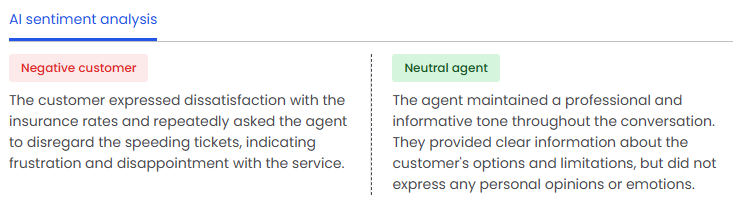
There are two places in the new media player that show information about the contact’s sentiment: the AI Sentiment Analysis tab and the AI Sentiment panel.
The AI Sentiment Analysis tab shows the sentiment (emotions) expressed by both the customer and the agent. It indicates positive, negative, or neutral sentiment for both parties and explains why Calabrio ONE assigned this sentiment.
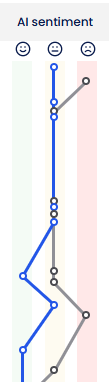
The AI Sentiment panel illustrates how agent and customer sentiment (emotion) changed over the course of a contact. The agent’s sentiment is blue, and the customer’s sentiment is gray. Positive sentiment appears in the stripe on the left. Neutral sentiment appears in the stripe in the middle. Negative sentiment appears in the pink stripe on the right.
The table below defines the different sentiments.
| Sentiment | Definition |
|---|---|
| Positive | The contact shows clear signs of satisfaction, resolution, or being a supportive and helpful conversation. These signs might include appreciative language, smooth issue resolution, or a generally upbeat interaction. |
| Neutral | The interaction is professional and factual throughout, with little emotional expression, neither strongly positive nor negative. Contacts with neutral sentiment are typically routine or transactional conversations. |
| Negative | The conversation reflects frustration, complaints, unresolved issues, or tension. It could include repeated expressions of dissatisfaction, escalations, or language that shows irritation or disappointment. |
Prerequisites
- Your organization has one of the following licenses:
- QM Intelligence (AI Sentiment Analysis tab)
- Analytics Essentials (AI Sentiment Analysis tab)
- Analytics Enterprise (AI Sentiment Analysis tab + AI Sentiment panel)
- Analytics Enterprise Plus (AI Sentiment Analysis tab + AI Sentiment panel)
- You have the View Contacts and View Sentiment permissions.
- An administrator has created a Sentiment Analysis task (see Turn on Advanced Sentiment or Create Analytics tasks). For the AI Sentiment panel to appear, the task must have sentiment trend enabled.
- The contact has a transcript. This transcript can be either the transcription of an audio contact or the text record of a chat or email exchange. The AI Sentiment Analysis tab and the AI Sentiment panel are not currently available for text or SMS contacts.
Page location
Interactions > Double-click a contact > AI sentiment analysis tab
Interactions > Double-click a contact > AI sentiment panel
You can also open the Media Player by clicking a contact ID in one of these locations:
- The Agent Explorer page
- The Performance Management home page
- In Insights
- The AI Tags dashboard
- The Auto QM dashboard
- The Trending Topics dashboard
- The Details pane of an Analytics widget
Procedure
View a sentiment marker in the contact
- Hover over a circle in the AI sentiment panel to see which party (agent or customer) the sentiment belonged to.
- Click a circle. The AI transcription panel, Time panel, Audio panel, Phrase hits panel, and audio timestamp (next to the Play button) move to the corresponding part of the contact.
Related topics