

Watch the screen recording of a contact in the new media player
IMPORTANT The information on this page is about the Screen Capture panel in the new media player. For information about the Screen Capture panel in the classic media player, go here: Watch the screen capture of a contact in the classic media player.
How do I know which version of the media player I have?
If you see the Return to classic button in the upper-right corner of the page, you are in the new media player, and the information below applies to you.
If you see the Switch to new media player button, or if you don't see either of these buttons, you are in the classic media player. Go here for information about the classic media player: Play contacts in the classic media player.
The Screen Capture panel provides a comprehensive view of the agent’s actions throughout a contact. You can replay programs the agent opened, buttons the agent clicked, and text the agent typed.
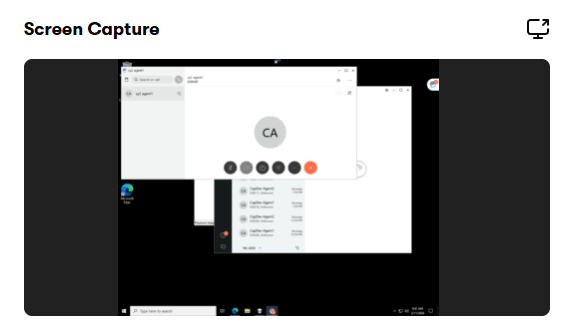
The Screen Capture panel can display recordings of both single- and multiple-monitor setups. With recordings of multiple-monitor setups, the panel displays one monitor at a time.
The screen size for screen recording playback is 1920 × 1088. If the total screen size for the screen recording is larger than 1920 × 1088, it is reduced to appear in the Screen Capture panel.
Prerequisites
- Your organization has one of the following licenses:
- QM
- QM Intelligence
- Screen Recording
- You have the View Contacts permission.
- The contact is either an audio call with a screen recording or a screen-only recording.
Page location
Interactions > Double-click a contact > Screen Capture panel
You can also open the Media Player by clicking a contact ID in one of these locations:
- The Agent Explorer page
- The Performance Management home page
- In Insights
- The AI Tags dashboard
- The Auto QM dashboard
- The Trending Topics dashboard
- The Details pane of an Analytics widget
Procedures
View the recording of a different monitor
Hover over the panel and click the monitor you want.
View the screen recording in a larger window
Click the Undock icon  in the upper-right corner of the panel. The panel opens in a new window. To return the panel to its original place, click the Redock icon
  , or close the window.
NOTE You cannot undock panels if you are using a pop-up blocker. To undock panels, disable your pop-up blocker.
If you undock the panel and resize the browser window, the screen recording resizes accordingly. Multi-monitor recordings are at least twice the size of single-monitor recordings.
Related topics