

Listen to an audio contact in the new media player
IMPORTANT The information on this page is about the Audio and Time panels in the new media player. For information about Audio panel in the classic media player, go here: Listen to an audio contact in the classic media player. For information about the Timeline panel in the classic media player, go here: Skip forward and back in a recording in the classic media player.
How do I know which version of the media player I have?
If you see the Return to classic button in the upper-right corner of the page, you are in the new media player, and the information below applies to you.
If you see the Switch to new media player button, or if you don't see either of these buttons, you are in the classic media player. Go here for information about the classic media player: Play contacts in the classic media player.
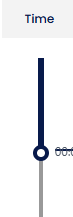
The Time panel in the media player lets you control the playback of an audio or screen recording.
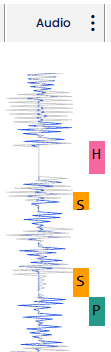
The Audio panel in the media player visualizes the audio recording. The energy bar shows where audio activity (the agent and customer speaking) occurred throughout the contact.

NOTE If an agent’s screen activity was recorded before a call started or after a call ended (for example, because of a Screen Recording Extension configuration), the energy bar is blank during that portion of the recording.
The color of the audio streams depends on the type of recording.
| Energy Bar | Recording Type | Description |
|---|---|---|
|
|
Stereo |
The inbound audio stream is gray. The outbound stream is blue. |
|
|
Mono |
The audio stream is blue. |


Speech energy event markers next to the energy bar label where Calabrio ONE detects significant audio events, such as where both the agent and the customer spoke at the same time.
Prerequisites
- Your organization has one of the following licenses:
- Call Recording
- QM
- QM Intelligence
- You have the View Contacts permissions.
- For the Audio panel to appear, the contact must be an audio call with a voice recording. For the Time panel to appear, the contact must have an audio recording, a screen recording, or both.
- For Pause markers to appear in the Audio panel, automated pause and resume must be configured. See Calabrio ONE Pause and Resume.
- For Silence markers to appear in the Audio panel, the silence threshold must be set on the QM Global Settings page. See Configure QM global settings.
- For Talkover markers to appear in the Audio panel, the talkover threshold must be set on the QM Global Settings page. See Configure QM global settings.
Page location
Interactions > Double-click a contact > Time panel
Interactions > Double-click a contact > Audio panel
You can also open the Media Player by clicking a contact ID in one of these locations:
- The Agent Explorer page
- The Performance Management home page
- In Insights
- The AI Tags dashboard
- The Auto QM dashboard
- The Trending Topics dashboard
- The Details pane of an Analytics widget
Procedures
Skip to a specific spot in the contact
- In the Time panel, click a location in the vertical gray line, or drag the black circle to that location, to move forward or backward to specific points in the recording. The AI transcription panel, Audio panel, AI sentiment panel, Phrase hits panel, Desktop panel, Screen Capture panel, and audio timestamp (next to the Play button) move to the corresponding part of the contact.
- In the Audio panel, click a speech energy event. The AI transcription panel, Time panel, AI sentiment panel, Phrase hits panel, Desktop panel, Screen Capture panel, and audio timestamp (next to the Play button) move to the corresponding part of the contact.
View more information about a speech energy event
Hover over a speech energy marker to view the event type, the timestamp in the contact where it occurred, and its length.
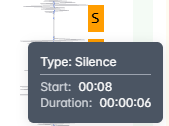
The following table describes all event markers.
| Icon | Type | Description |
|---|---|---|
|
|
Comment |
An evaluator added a comment to their evaluation based on this section of the contact. NOTE Comments left on evaluation forms that are in calibration mode do not appear as event markers. |

|
Hold |
The agent placed the call on hold. NOTE Hold events are not available for all integrations. |

|
Pause | The recording was paused because the agent did something that told Calabrio ONE to stop recording (see Identify websites and apps to be tracked by Analytics). |
|
|
Silence |
Neither the agent nor the customer was speaking, and the silence was long enough to meet the threshold that is set on the QM Global Settings page (see Configure QM global settings and About silence and talk over events). NOTE Brief background noises might appear as audio energy, but Calabrio ONE still considers those silence. |
|
|
Talk over |
Both the agent was the customer were speaking at the same time, and the talk over was long enough to meet the threshold that is set on the QM Global Settings page (see Configure QM global settings and About silence and talk over events). |


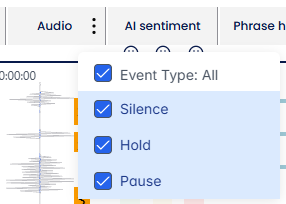
Add or remove speech energy event markers from the Audio panel
- Click the options icon
 in the upper-right corner of the panel.
 -
To add an event type to the panel, select its check box. To remove an event type, clear its check box.
Related topics