

Evaluate a contact or view a manual evaluation in the new media player
IMPORTANT The information on this page is about the Manual evaluation tab in the new media player. For information about manual evaluations in the classic media player, go here: Evaluate a contact or view the AI evaluation in the classic media player.
How do I know which version of the media player I have?
If you see the Return to classic button in the upper-right corner of the page, you are in the new media player, and the information below applies to you.
If you see the Switch to new media player button, or if you don't see either of these buttons, you are in the classic media player. Go here for information about the classic media player: Play contacts in the classic media player.
Evaluators use the Manual evaluation tab within the Media Player to score agents’ work handling contacts. Answering questions in an evaluation form generates a score for the agent’s work on a single contact. Contacts of any type and with any type of content (voice, screen, text, and so on) can be evaluated. The performance statistics in QM and Insights reports are based on these scores.
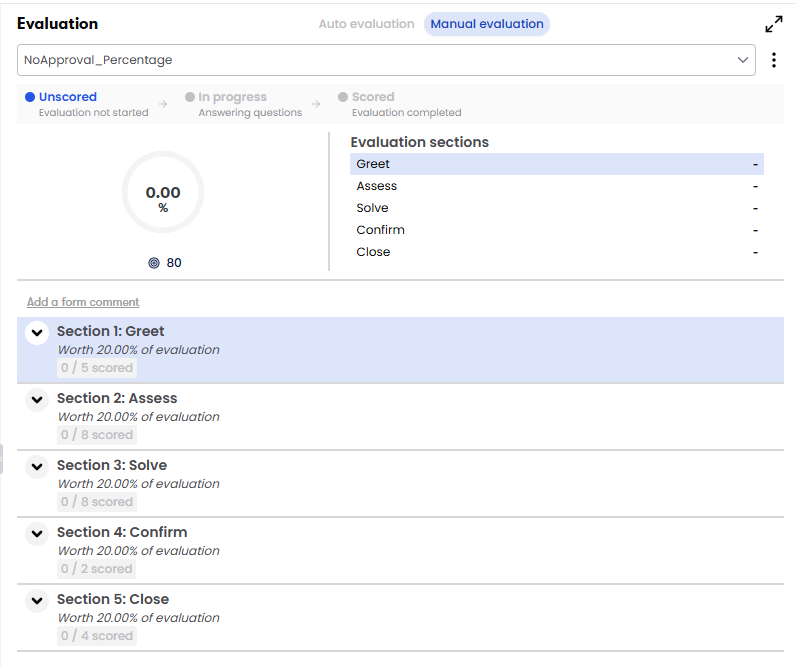
Below is an example of an evaluation that has not been started. Depending on how the form was configured, you might see the target score for the form.
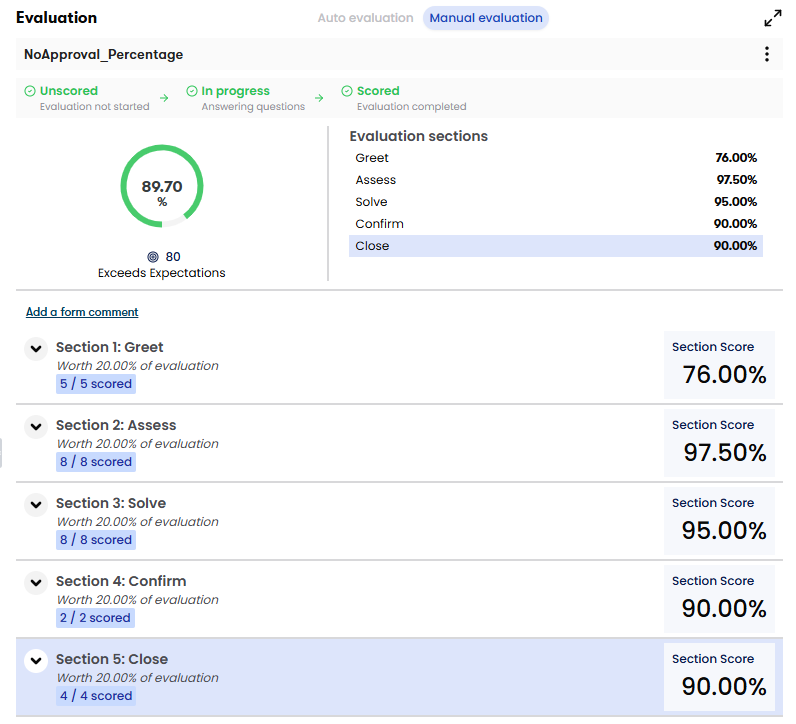
Below is an example of a completed evaluation. Depending on how the form was configured, you might see the name for the scoring band that the score falls into.
Prerequisites
- Your organization has the QM or QM Intelligence license.
- Your organization has created and published evaluation forms (see Manage evaluation forms).
- Your role and scope allow you to view recordings.
- You have the following permissions:
- View Contacts
- View Evaluations (gives you view-only access to completed evaluation forms)
- Evaluate Contacts
- Some actions require additional permissions. See the Procedures for agents section below for more information.
Page location
Interactions > Double-click a contact > Evaluation panel > Manual evaluation tab
You can also open the Media Player by clicking a contact ID in one of these locations:
- The Agent Explorer page
- The Performance Management home page
- In Insights
- The AI Tags dashboard
- The Auto QM dashboard
- The Trending Topics dashboard
- The Details pane of an Analytics widget
Acknowledge an evaluation of your work
Depending on how your organization uses Calabrio ONE, you might be required to review and acknowledge your evaluations. This option is available if the person who created the form selected the “Allow Agent to Acknowledge Scored Evaluations” option on the form.
- Click the options icon
 and select Acknowledge Evaluation. A banner with your name and today’s date appears underneath the name of the evaluation form.
Appeal an evaluation of your work
If you disagree with an evaluation, you might be able to request that your work be rescored. This option is available if the person who created the form selected the “Allow Agent to Acknowledge and Appeal Scored Evaluations” option on the form.
- Click the options icon and select Appeal Evaluation.
- Enter the problem with the evaluation in the Provide reason for appeal field.
- Click Appeal. A banner with your name and today’s date appears underneath the name of the evaluation form. If you get alerts or emails about new evaluations, you will receive an update when someone reviews your appeal.
Procedures for evaluators
View an evaluation in a larger window
Click the undock icon  . The Evaluation panel opens in a larger window. To return the form to its original place, click the redock icon
  , or close the window.
NOTE You cannot undock forms if you are using a pop-up blocker. To undock forms, disable your pop-up blocker.
Evaluate a contact
- Select an evaluation form from the drop-down list at the top of the panel. Sometimes the evaluation form is already selected.
- As needed, click Play and Pause to review the contact.
- Answer the questions in the evaluation form. The score and Evaluation sections update as you work.
- If you can’t score the contact, click the options icon and select Cannot Score. The state changes to Cannot score or Needs cannot score approval.
- To change all the unanswered questions to your organization’s standard answers, click the options icon and select Set Unanswered Questions to Default.
- If you can’t score the contact, click the options icon
-
(Optional) To add a comment:
- About the contact as a whole, click Add a form comment, enter the comment, and click Add comment.
- About a section in the evaluation form, click Add a section comment, enter the comment, and click Add comment.
- About a question in the form, click Add a question comment, enter the comment, and click Add comment.
NOTE- To add a comment to a specific time in an audio contact, enter the timestamp in the Location fields before you click Add comment. A C icon appears in the Audio panel at the location you specify.
- To add a comment to a specific place in an email, text, chat, or SMS contact, click a conversation block in the Email thread, Chat transcript, SMS transcript, or Text map panel before you click Add comment.
- You need the Create Evaluation Comment permission to add comments to evaluations.
- To finish the evaluation, click the options icon and select Complete. The state changes to Scored or Needs approval.
NOTE If you close the contact before you complete the evaluation, Calabrio ONE automatically saves the form and marks it as In progress. The agent will not see the evaluation until it is complete.
Edit a completed or partially completed evaluation
You can change the answers for any evaluation that you completed. To change an evaluation started or completed by someone else, you need the Edit Any Evaluation permission.
- Click the options icon and select Edit. The state changes from Scored to In progress.
- Edit the evaluation as needed.
- Click the options icon and select Complete. The state changes from In progress to Scored. If the evaluation was originally started or completed by someone else, that person is still listed as the evaluator for the contact.
Edit a comment in an evaluation
You need the Edit Evaluation Comment permission to do this. You cannot edit a comment's location.
- Click the comment.
- Click Edit.
- Edit the comment as needed.
- Click Update comment.
Delete all answers from an evaluation
You can clear answers or select a different evaluation form for any evaluation that you completed. To clear answers or select a new evaluation form for an evaluation completed by someone else, you need the Edit Any Evaluation permission. If the evaluation’s state is Scored, deleting the answers also deletes data related to the score (for example, metrics in Insights reports).
- Click the options icon and select Reset Form. The state changes from In progress or Scored to Unscored.
Evaluate a contact for a calibration exercise
In a calibration exercise, multiple evaluators score the same contact and then compare their scores. Calibration exercises help ensure that agents get consistent scores, regardless of who evaluates their contacts. These are the requirements to be part of a calibration exercise:
- You have the Calibrate Contact permission.
- To calibrate a contact that you handled, you need the Self Calibrate Contact permission.
- The contact is marked for calibration (see Mark a contact for calibration).
- The agent whose contact you are evaluating is within your scope.
-
Click the options icon
and select Mode > Calibration. The word Calibration appears at the top of the panel.NOTE By default, all contacts are in Evaluation mode, even if they have been marked for calibration.
- Evaluate the contact as normal. The state changes to In progress.
- Click the options icon and select Complete. The state changes to Scored.
Print an evaluation
- Click the options icon and select Print. Your browser’s print window opens. From here, you can also save the evaluation as a PDF.
Review an appealed evaluation score
To be notified when an agent appeals an evaluation you completed, you must be assigned to the Evaluation Appeal Request notification (see Configure notifications). When you get an appeal notification, do one of two things:
- Revise the evaluation and then click Complete.
- Click Complete without changing anything.
Approve a completed evaluation
This option is available if the person who created the form selected the “Approval Required” option on the form. You need the Approve Contact Evaluation permission to approve an evaluation completed by someone else. To approve an evaluation that you scored, or to approve an evaluation of a contact you handled, you need the Self-Approve Contact Evaluation permission. To be notified when an evaluation needs approval, you must be assigned to the Evaluation Needs Approval notification (see Configure notifications).
- Click the options icon and select Approve. The state changes from Needs approval to Scored.
This option is available if the person who created the form selected the “Approval Required” option on the form. You need the Approve Contact Evaluation permission to do this. To be notified when an evaluation needs approval, you must be assigned to the Evaluation Needs Approval notification (see Configure notifications).
- Click the options icon and select Reject. The state changes from Needs approval to In progress.
Related topics