

Read a chat contact in the new media player
IMPORTANT The information on this page is about the Chat Transcript and Text Map panels in the new media player. For information about the Chat Transcript panel in the classic media player, go here: Read a chat or text message contact in the classic media player. For information about the Text Map panel in the classic media player, go here: View the overview of a chat contact in the classic media player.
How do I know which version of the media player I have?
If you see the Return to classic button in the upper-right corner of the page, you are in the new media player, and the information below applies to you.
If you see the Switch to new media player button, or if you don't see either of these buttons, you are in the classic media player. Go here for information about the classic media player: Play contacts in the classic media player.
There are two places in the new media player that show information about chat contacts: the Chat Transcript panel and the Text Map panel.
The Chat Transcript panel in the new media player contains chat conversations. The responses from the agent who handled the contact are on the right, and responses from the customer and any other agents involved in the conversation are on the left. The messages from each person in the conversation are a different color for up to four different participants. (If a conversation has five or more participants, the colors repeat.)
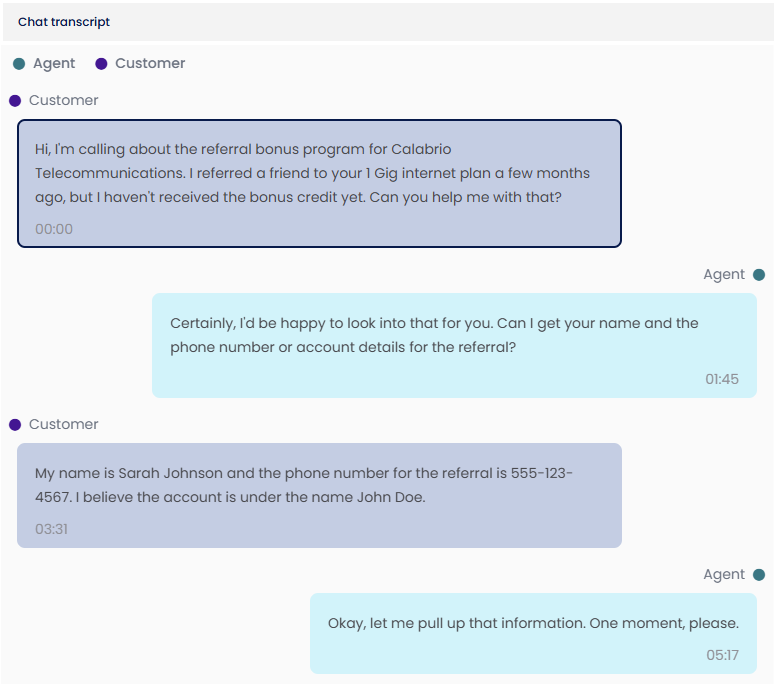
You might see “System User” as a participant. These messages are automatically generated by the chat program your organization uses and usually say things like, “Agent Jane Doe has joined the chat” or “Chat session closed at 10:36 AM.”
The Text Map panel in the new media player contains colored rectangles that represent the messages in a chat contact. This panel gives you a high-level picture of the conversation without needing to scroll. The responses from the agent who handled the contact are light blue, and responses from the customer are dark blue. The messages from each person in the conversation are a different color for up to four different participants. (If a conversation has five or more participants, the colors repeat.) The size of the bubble reflects the length of the response.

Prerequisites
- Your organization has one of the following licenses:
- Call Recording
- QM
- QM Intelligence
- Your organization imports chat contacts into Calabrio ONE via a supported integration that uses the ACD Media Import API, not via the Generic Text Import API.
- You have the View Contacts permission.
- The contact is a chat conversation.
Page location
Interactions > Double-click a contact > Chat transcript panel
Interactions > Double-click a contact > Text map panel
You can also open the Media Player by clicking a contact ID in one of these locations:
- The Agent Explorer page
- The Performance Management home page
- In Insights
- The AI Tags dashboard
- The Auto QM dashboard
- The Trending Topics dashboard
- The Details pane of an Analytics widget
Procedures
Search for words in a chat conversation
- In the Chat transcript panel, click the options icon
 in the upper-right corner.
 - Select Find.
- Enter your search in the Find field. Text that matches your search is highlighted in pink.
Print a chat conversation
- In the Chat transcript panel, click the options icon in the upper-right corner of the panel.
- Select Print. Your browser’s print window opens. From here, you can also save the conversation as a PDF.
Skip to a specific spot in the conversation
- In the Chat transcript panel, click a text bubble to move to the corresponding message in the conversation. The message is outlined in the Text map panel.
- In the Text map panel, click a rectangle to move to the corresponding message in the conversation. The message is outlined in the Chat transcript panel.

Related topics