

Create rules for automatically scheduled coaching sessions in Performance Management
On the Auto Coaching page, you can set the criteria that must be met for an agent and a coach to be automatically scheduled for a coaching session. You can create different rules based on team or group and can rank the priority of each rule.
When Performance Management schedules a coaching session, the session appears on the Coaching > Approval Required page with Auto in the Scheduling column.
When the auto-scheduled session is approved, it appears on the Coaching > Scheduled page with Auto-scheduled in the upper-right corner.
See View and manage coaching sessions in Performance Management for more information about the Coaching page.
Prerequisites
- Your organization's Calabrio ONE account is not hosted in Calabrio's South Africa realm (za1.calabriocloud.com). Performance Management is not available to accounts in the ZA1 realm.
- Your organization has enabled the new login experience. See Log in to Calabrio ONE with your subdomain URL for more information.
- To assign a rule to a group or team, you must have scope over that group or team. For best results, Performance Management administrators should have scope over agents in all the Calabrio products their organizations uses. See Create and edit users for QM, Analytics, Insights, and Performance Management
- You have the Administer Performance Management Enterprise permission.
- Paths are created and assigned to agents. See Select metrics to measure with Performance Management.
- To add auto-scheduled coaching sessions to agents' and coaches' WFM schedules, all the following are needed:
- A Coaching activity is created in WFM. See Create activities for more information.
- An administrator has enabled the connection with WFM schedules. See Connect external calendars to Performance Management.
- Agents and coaches have the API access > Read schedule permission in WFM. See How WFM function permissions work.
- Agents have the API access > Read organization permission in WFM. This permission lets agents view their WFM schedules in Performance Management.
- To add auto-scheduled coaching sessions to coaches' calendar in Outlook , each coach must connect Performance Management with their external calendar. See Connect external calendars to Performance Management and How Auto Coaching works for more information.
Page location
Performance Management > Settings > Configuration > Auto Coaching
Procedures
Create an Auto Coaching rule
Step 1: Enter basic information (required)
- Click Add rule.
- Enter a title in the Rule name field. This name will appear for the agent, the coach, and anyone else who has access to see coaching sessions that are created based on this rule.
- Enter the title for coaching sessions created from this rule in the Session title field. This title will appear for the agent, the coach, and anyone else who has access to see coaching sessions that are created based on this rule.
- (Optional) Enter information about the rule in the Description field. This information will appear to the agent, the coach, and anyone else who has access to see coaching sessions that are created based on this rule .
-
Select the rule's importance from the Rule priority drop-down list. Performance Management uses this setting when an agent could be eligible for coaching sessions based on multiple rules.
EXAMPLE An agent is eligible to be scheduled for coaching sessions based on two different rules. One rule has a high priority, and the other rule has a medium priority. Performance Management schedules the session for the high-priority rule first before trying to schedule the session for the medium-priority rule.
EXAMPLE An agent is eligible to be scheduled for coaching sessions based on two different rules. Both rules have the same priority. Performance Management schedules the session for the rule that comes first in alphanumeric order and then schedules the session for the rule that comes second alphanumerically. If two rules have the same name, Performance Management prioritizes scheduling the session for the rule that was created first.
Step 2: Set the criteria (required)
In this step, you select the trigger that causes Performance Management to auto-schedule a coaching session and choose which groups or teams the trigger applies to.
- Select the path to base the rule on from the Path drop-down list.
- Select the metric to base the rule on from the KPI Metric drop-down list.
-
In the Target value field, enter the minimum acceptable score for the metric. If the metric is time based, enter the time in seconds. The rule will automatically schedule a coaching session if the agent does not meet this score. The target value appears in the coaching session details as the Goal number.
EXAMPLE You create a rule that is based on the Handle Time metric. For the team assigned to this rule, you want to automatically schedule a coaching session if agents consistently average a handle time over eight minutes. You enter 480 in the Target value field.
-
From the Rolling Evaluation Period drop-down list, select the time frame that Performance Management should consider when determining whether to schedule a coaching session. These are your options:
- Daily (last 24 hours)—The agent's average score for the metric over the last 24 hours does not meet the target value.
- Weekly (last 7 days)—The agent's average score for the metric over the last seven days does not meet the target value.
- Bi-weekly (last 14 days)—The agent's average score for the metric over the last fourteen days does not meet the target value.
- Monthly (last 30 days)—The agent's average score for the metric over the last thirty days does not meet the target value.
- Select at least one team or group from the Select team or group drop-down list. The Assign coaches field appears.
- For each group or team you selected, select coaches from the Assigned coaches drop-down list. When scheduling coaching sessions, Performance Management randomly matches a coach from this list with the agent who needs coaching.
Step 3: Refine the rule (optional)
All of the options in this section are independent of each other. You can configure as many or as few of these settings as you like.
-
To allow coaching sessions to appear in calendars outside of Performance Management:
- Toggle on Link to WFM/external calendar.
- Select the agent's and coach's Business Unit if that drop-down list appears.
- Select the activity to place on the agent's and coach's schedule from the Activity drop-down list.
See Connect external calendars to Performance Management for more information about calendars. See Create activities for more information about activities.
- After the coaching session, agents have five days to meet the target score for the rule's metric. To adjust this setting, enter a different number from 1 to 30 in the Mini goal due date field. See Create mini-goals in Performance Management for more information about mini-goals.
- If the agent does not meet the Target value score after the mini-goal due date, Performance Management waits seven days after the due date before scheduling a second coaching session for that agent based on the same rule. To adjust this setting, enter a different number from 1 to 30 in the Coaching wait period field.
-
When a rule is triggered, Performance Management schedules a coaching session for a date at least three days in the future. This setting gives agents and coaches some advance notice of their upcoming session. To adjust this setting, enter a different number from 1 to 14 on the Session schedule delay (days) field.
NOTE This number must be less than the Max session lookout (days) setting.
-
When scheduling a coaching session on an agent's and coach's calendars, Performance Management looks for an open time slot up to seven days in the future. If it cannot find an open slot on the calendar for any coach assigned to the rule, it does not schedule a session. To adjust this setting, enter a different number from 1 to 14 in the Max session lookout (days) field.
NOTE This number must be greater than the Session schedule delay (days) setting.
- Performance Management does not schedule coaching sessions at times that are understaffed according to WFM. To change this, select Enable schedule during understaffed periods.
- Performance Management does not schedule coaching sessions on top of activities that are non-overridable in WFM. To change this, select Enable schedule over non-overridable activities.
Step 4: Activate and save the rule (required)
When you activate a rule, it does not immediately begin to schedule sessions. Sessions begin to appear on the Coaching > Approval Required tab the day after the rule is activated.
- When you are finished configuring the rule, scroll up to the top of the page and toggle on Enable rule.
- Scroll down to the bottom of the page and click Save rule. You return to the list of rules with the rule you just created at the top.
View details about a rule
- Click the three dots next to a rule and select Edit. The rule details page opens.
- When you are finished, click Cancel.
Set the maximum number of sessions an agent can be assigned
- Click Edit global settings. The Auto coaching - global settings window opens.
- Select the Max number of sessions created for an agent per week or the Max number of sessions created for an agent per month.
- Click Save.
This setting includes both manually scheduled and auto-scheduled sessions. If an agent has this number of sessions scheduled during the time period and becomes eligible for another auto-scheduled session, Performance Management will auto-schedule the session for the next time period.
EXAMPLE The Max number of sessions created for an agent per week is 2. An agent has one auto-scheduled coaching session and one manually scheduled coaching session scheduled for the next week. The agent becomes eligible to be auto-scheduled for another coaching session. Rather than schedule the session for the upcoming week, Performance Management schedules the session for the following week.
Sessions that are rejected, expired, or missed do not count toward this number. The week starts at 12:00 AM Monday morning according to the tenant time zone. See Configure global settings for more information about tenant time zones.
Activate a rule
When you activate a rule, it does not immediately begin to schedule sessions. Sessions begin to appear on the Coaching > Approval Required tab the day after the rule is activated.
- Click Disabled next to the rule and select Enabled.
When you deactivate a rule, it immediately stops scheduling coaching sessions. The coaching sessions that it has already scheduled are not affected.
- Click Enabled next to the rule and select Disabled.
Edit a rule
You can change anything about a rule except for its path and KPI metric.
- Click the three dots next to the rule and select Edit. The rule details page opens.
- Make changes to the rule as needed.
- Click Save rule.
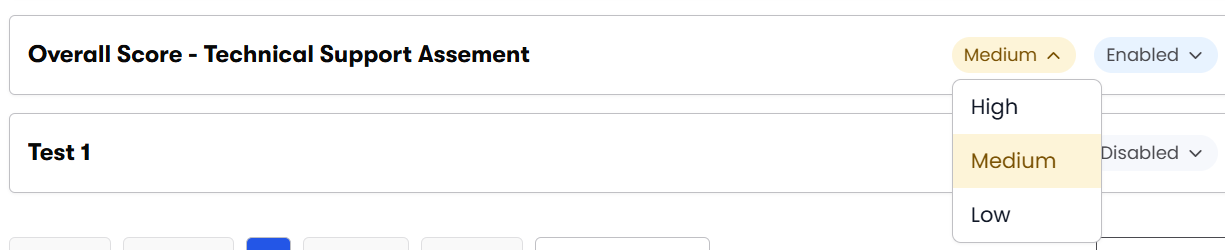
Click the priority next to the rule and select a different priority. Performance Management immediately adjusts its scheduling actions.
Copy a rule
- Click the three dots next to a rule and select Copy. The rule details page opens with (Copy) added to the rule name.
- (Optional) Edit the copy as needed.
- Click Save rule.
Delete a rule
IMPORTANT If you delete a rule, all coaching sessions that were scheduled based on that rule are deleted, including both past and future sessions.
BEST PRACTICE To stop scheduling sessions based on a rule but keep the records of the rule's sessions, deactivate the rule instead of deleting it. See Deactivate a rule.
- Click the three dots next to the rule and select Delete. The Delete Rule window opens.
- Click Delete. The rule disappears from the list of rules.
Filter the information on the page
- Search for a rule by name, or select an option from one or more of the drop-down lists above the list of rules.
- To see all the rules again, click Clear filters.
The table below defines the filter options.
| Filter | Definition |
|---|---|
| Priority | The priority Performance Management uses when scheduling coaching sessions based on this rule. |
| Path | The path upon which the rule is based. See Select metrics to measure with Performance Management for more information about paths. |
| KPI Metric | The specific metric within the path that triggers Performance Management to schedule a coaching session. To activate this filter, first select a path from the Path filter. |
| Group | The group of teams that is assigned to the rule. |
| Team | The team of agents that is assigned to the rule. |
Auto Coaching adds coaching sessions to agents' and coaches' calendars based on which calendars they have connected. The table below explains how Auto Coaching schedules sessions in different situations.
| User type and calendar connection | How coaching sessions are scheduled |
|---|---|
| Agent or coach with a WFM calendar connected | Auto Coaching schedules sessions within the agent's or coach's WFM schedule. |
| Coach with a Outlook calendar connected | Auto Coaching schedules sessions for times that are both open in the coach's Outlook calendar and are within the Availability settings the coach has set on the Integrations page. See the "Procedures for coaches" section here for more information about Availability settings: Connect external calendars to Performance Management. |
| Agent and coach with no calendar connected | If neither the agent nor the coach has a connected calendar, Auto Coaching schedules sessions between 9 AM and 5 PM Monday through Friday, based on the tenant's time zone. See Configure global settings for more information about tenant time zones. |
Related topics