

View the AI evaluation for a contact in the new media player
IMPORTANT The information on this page is about the Evaluation panel in the new media player. For information about the Evaluation panel in the classic media player, go here: Evaluate a contact in the classic media player.
How do I know which version of the media player I have?
If you see the Return to classic button in the upper-right corner of the page, you are in the new media player, and the information below applies to you.
If you see the Switch to new media player button, or if you don't see either of these buttons, you are in the classic media player. Go here for information about the classic media player: Play contacts in the classic media player.
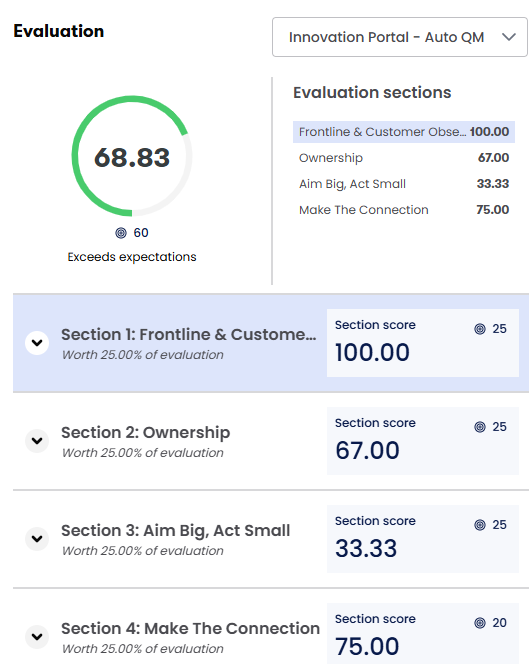
The Evaluation panel in the new media player shows the overall score that Calabrio ONE gave to the contact. The Evaluation sections section shows the score that Calabrio ONE gave to each section within the evaluation form that it used to score the contact.
If the contact was scored with multiple Auto QM forms, the one that appears when the media player opens is the most recent evaluation. Depending on how the form was configured, you might also see the target score for the form and the name for the scoring band that the score falls into (see Manage forms for AI evaluation).
Prerequisites
- Your organization has the QM license and either the Analytics Enterprise license or the Analytics Enterprise Plus license.
- Your organization has opted in to access the new media player.
- You have the View Contacts and View Auto QM permissions.
- The contact has a transcript that is under 10,000 words. This transcript can be either the transcription of an audio contact or the text record of a digital contact like a chat or email exchange. This word limit helps Auto QM score contacts quickly.
- An administrator has created an Auto QM task (see Create Analytics tasks).
Page location
New media player > Evaluation panel. You can access the new media player by opening a contact from one of these locations:
- Analytics > Trending Topics
- Analytics > Auto QM
- Analytics > AI Tags
Procedures
View the AI score for a different form
Select the form from the drop-down list in the upper-right corner of the panel. The score based on the form you selected appears.
View the evaluation in a larger window
Click the undock icon  next to the form name. The evaluation opens in a larger window.
View details about a section score
Expand a section to see the questions within the section, along with the weight each question contributes to the total section score.

View details about a question score
-
Expand a question to see its score, along with the AI’s explanation for the answer it selected.

-
(Optional) To jump to the part of the contact that the AI used to answer this question, click the Location time stamp.
For audio contacts, the AI transcription, Time, Audio, and Phrase hits panels all move to that portion of the contact.
For digital contacts, the Chat transcript and Text map panels move to that portion of the contact.
NOTE Sometimes the AI comment does not include a Location timestamp. This is usually because the AI selected its answer based on the conversation as a whole and not on any specific message within the conversation.
Override the automated score for a question
You can edit the AI score for a question if you have the Edit Auto QM permission. The new score replaces the AI score in all places where Auto QM scores appear.
- Expand the question that you want to rescore.
- Click Edit.
- Click the answer option that the AI should have selected.
- Enter a comment in the User can write a comment field that explains why you are editing the automated score.
- (Optional) To mark a part of the contact that you used to override the AI score, click a text bubble in the AI transcription panel (for audio contacts) or the Chat transcript panel (for digital contacts). The Location updates with the timestamp for the text you selected.
- Click Save. The scores for the question, the section, and the form update, and the comment you entered replaces the AI’s comment.
Related topics