

Format tables and pivot tables in Insights
Prerequisites
-
You have the Insights Author license.
- You have created a table or pivot table. See Use tables as visuals or Use pivot tables for instructions.
Page location
Insights > Analyses > Click an analysis > Click a table or pivot table
You can customize tables and pivot tables in Insights to meet your business needs. You can customize table headers, cells, and totals by specifying the color, size, wrap, and alignment of text in each. You can also specify the height of rows in a table, add borders and grid lines, and add custom background colors. In addition, you can customize how to display totals and subtotals.
If you have applied conditional formatting to a table or pivot table, it takes precedence over any other styling you configure.
If you export table or pivot table visuals to Microsoft Excel, the downloaded Excel file does not include the formatting customizations that you applied to the visual.
Procedure
Format a table or pivot table
-
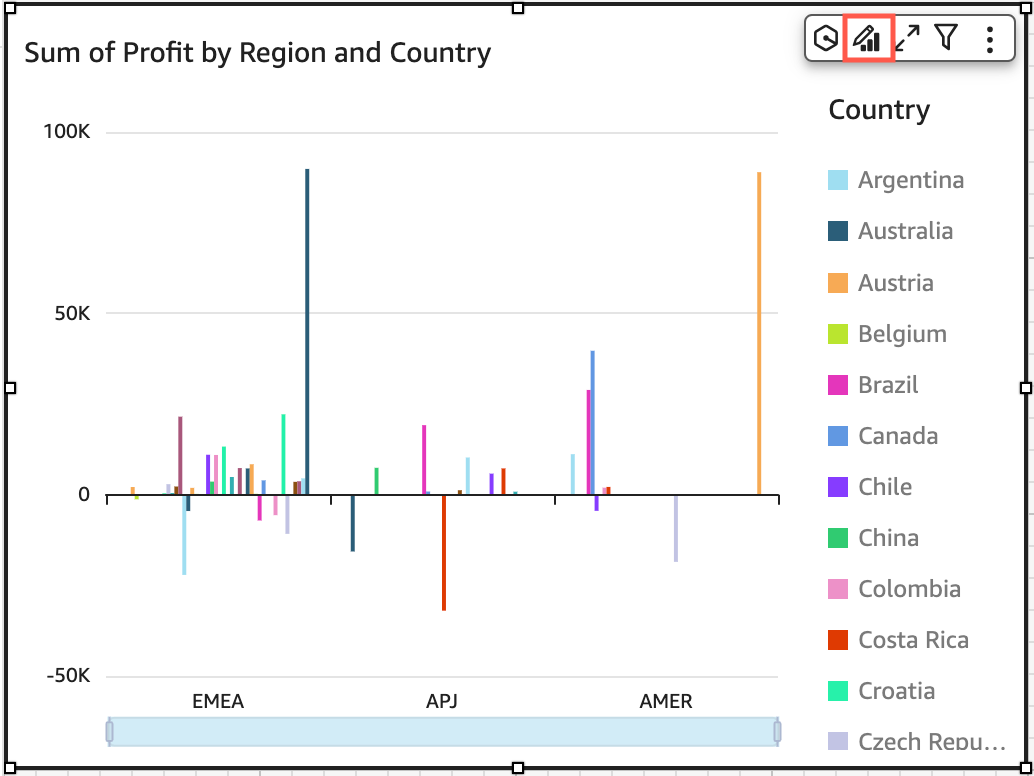
Click the Format visual icon in the upper-right corner of the visual. The Properties panel opens.
Topics in this section
The pages in the list below describe the options in the Properties panel for customizing each area of your table or pivot table.