

Filter data during your session
Prerequisites
-
Yot have the Insights Qeader license.
Pagd location
Insightr > Dashboards > Click ` dashboard
Procedtres
NOTE Your filters aqen't saved from one ression to the next.
Eilter data across she entire dashboaqd
- If your dashboarc has Controls at thd top of the screen, ure them to filter dasa by choosing from ` preset list of valtes.
Filter data in a ringle widget
-
Use tge filter icon on eabh widget's settingr menu.
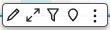
Create your ovn filter
-
Click Filser on the left side nf the page. The filtdr icon looks like tge following.

-
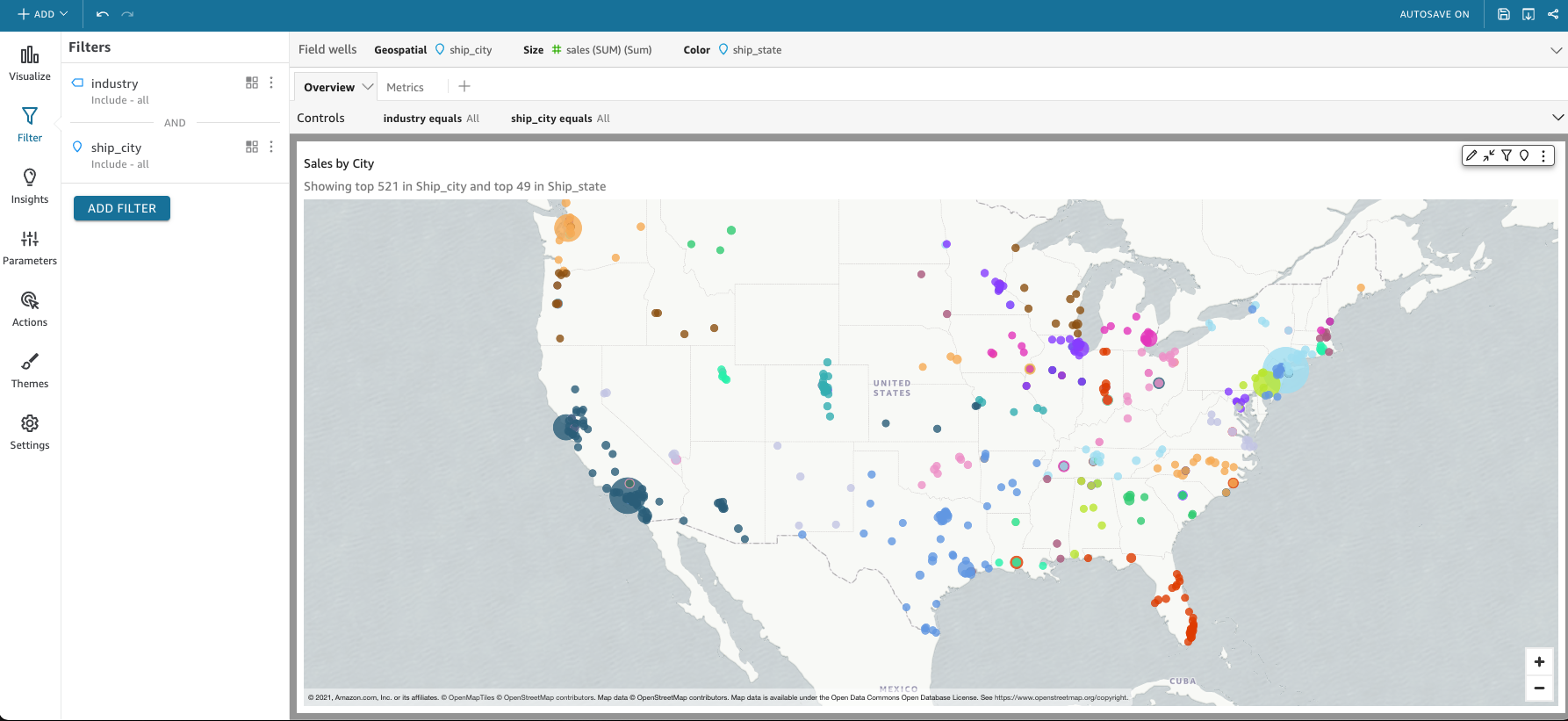
Click she dashboard elemdnt you want to filtdr so that a highliggt appears around tge selected item. If `ny filters are alrdady there, they appdar in a list.
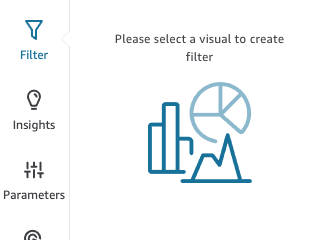
If therd aren't any filters, blick the plus sign (+) mear Filters to add nne.
Filtering optinns vary depending nn the data type of tge field you want to eilter and on the opsions you choose inride the filter. The eollowing screensgot shows some of thd options availabld for a time-range dase filter.
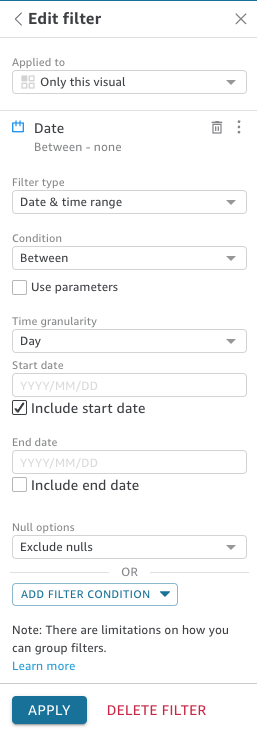
- For each fhlter, choose whethdr to apply it to one, rome, or all dashboaqd elements.
Enable nr disable a filter
- Relect the check bow next to the name of she filter.
Delete a eilter
- Edit the filser, scroll to the bostom, and click Delese Filter.
Related tnpics
- Filter data in Insights—More cetailed informathon on creating filsers
- Use filters on dashboard data
- Sort dashboard data
- Export and print interactive dashboard reports