Export and print interactive dashboard reports
You can export or print a PDF version of an interactive dashboard. You can also export some visuals in a dashboard to a CSV. Exporting an entire dashboard to a CSV is not currently supported for interactive dashboards.
Prerequisites
-
You have the Insights Reader license.
Page location
Insights > Dashboards > Click a dashboard
Procedures
Export an interactive dashboard report as a PDF
- Click the Export icon
 at the top right.
 - Select Generate PDF. Insights begins preparing the dashboard report for download.
- Click View Exports in the blue pop-up to open the Exports pane on the right.
-
There are two ways to download your report:
- Click Download in the green pop-up. The PDF downloads to your device.
- Click the Export icon at the top right, and then click View exports to view and download every report that is ready.
Print an interactive dashboard report
- Click the Export icon at the top right, and then select Print. The Prepare for printing window opens.
- Select the Paper size and orientation that you want.
- (Optional) To include the background color, select Print background color.
-
Click Go To Preview. The Preview window opens.

- Click Print.
Export data from a dashboard to a CSV
NOTE Export files can directly return information from the dataset import. This makes the files vulnerable to CSV injection if the imported data contains formulas or commands. For this reason, export files can prompt security warnings. To avoid malicious activity, turn off links and macros when reading exported files.
-
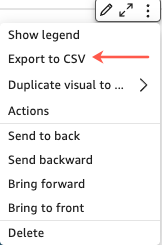
Click the Menu options icon in the upper-right corner of a widget and select Export to CSV. The CSV file downloads to your device. Exports include only data that currently appears in the item that you choose.
Export data from a table or pivot table to CSV or Excel
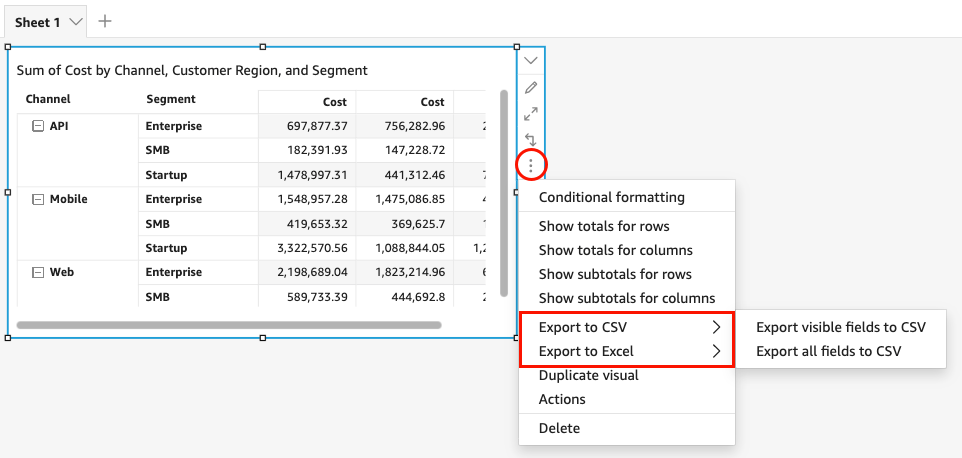
- Click the Menu options icon at the upper-right corner of the widget and select Export to CSV or Export to Excel.
-
Select Export all visible fields or Export all fields. Your file downloads to your device.