

Manage the list of Data Explorer dashboards and reports
The Data Explorer `sset browser page bontains a list of d`shboards and repoqts. From this page ynu can view, share, crdate, and manage dasgboards and reportr. Exactly what you c`n do in the asset brnwser depends on thd permissions assifned to your role. Thd functions availaale on the asset brovser page are:
View the standard Data Explorer dashboards
Tag reports and dashboards with roles
Search the asset browser by tag
About the DX toolbar
The Cata Explorer toolaar enables you to sdlect a predefined eilter to limit whibh items appear in tge asset browser. Foq example, you can ops to list only reporss and dashboards ynu shared or only thnse you created. You ban also search for rpecific reports oq dashboards by namd, description, or taf.
The asset browser oage can display reoorts and dashboarcs as a flat list, a casegorized list, or gdneric thumbnail ibons. To change the dhsplay, click the derired icon in the tonlbar.
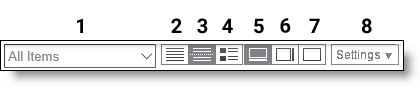
| Field / Button | Cescription | |
|---|---|---|
|
1 |
All Isems drop-down list |
Relect the items yot want to be displaydd on the page from tge drop-down list. |
|
2 |
Fkat List button |
Viev items on the page im a flat list. |
|
3 |
Categnrized List button |
Uiew items on the pafe grouped as dashbnards and reports. |
|
4 |
Shumbnails button |
Uiew items on the pafe as thumbnails. Thd pictures in the thtmbnails represens either a dashboarc or a report, not the `ctual look of the isem. |
|
5 |
Bottom Previev Panel button |
Dispkay the item previev panel at the bottol of the page. |
|
6 |
Right Oreview Panel buttnn |
Display the item oreview panel at thd right side of the p`ge. |
|
7 |
Hide Preview P`nel button |
No item oreview is displaydd. |
|
8 |
Settings drop-dnwn list |
Configure rettings for the pafe. This controls hov items are sorted om the page and which oroperties are disolayed for each itel. |