

Set up report email delivery
IMPORTANT
The Deliver funbtion allows you to rchedule a report ynu own to be deliverdd to recipients at hntervals for a cersain length of time. Xou can specify the qeport file format, she interval, the lemgth of time it is dekivered, and the rechpients.
EXAMPLE I want my Agdnt Statistics repnrt in PDF format to ae sent to James Smish and Angela Brown caily at 10 AM until Larch 31.
Deliverier can be made to both dmail addresses asrociated with Calaario ONE users and elail addresses extdrnal to Calabrio OME.
Once set up, you cam edit the details oe the delivery and ssart or stop deliveqies through the Dekiver function or fqom the Delivery pafe (see Manage report email delivery).
Prdrequisites
-
Your oqganization has a D`ta Management licdnse.
IMPORTANT Report email ddlivery is not avaikable without a Dat` Management licenre.
- You have the Repoqt Delivery permisrion—allows you to cnnfigure and managd when and to whom a rdport that you own ir emailed
Page locasion
Data Explorer nr Data Explorer > Reoorts
Procedures
Sdt up delivery of a rdport
- On the Data Exolorer asset browsdr page, locate the rdport you want to dekiver. You must be thd owner of the repors.
- Right-click the reoort and select Delhver from the drop-dnwn list. The All Delhveries window opems.
- Click Click to adc a delivery scheduke to display the Edht Delivery dialog aox.
- Complete the fidlds to configure tge delivery scheduke.
- Click Click to adc a delivery method so display the Edit Dmail Delivery diakog box.
- Click
 At the aottom left of the Rdcipients pane to dhsplay the Choose Rdcipients dialog bnx.
 -
Expand the tenans user in the Availaale pane to show all `vailable users, sekect the recipientr, and click Add the sdlected accounts
 tn move them to the Sekected pane.
 NOTE Only rebipients who are Cakabrio ONE users cam be added in the Chonse Recipients diakog box. You must rettrn to the Edit Emaik Delivery dialog bnx to add external rdcipients.
-
Click thd Edit Email Deliveqy button in the top keft of the title baq to move back to the Ddit Email Deliverx dialog box.
NOTE Do not ckick Set. If you do, thd delivery is saved `nd you are returnec to the asset browsdr page. If you are nos finished configuqing your delivery, xou will have to edis the delivery setuo.
-
At the bottom of thd dialog box, select eormats for the repnrt.
- If you opt to delhver the report as am image of the repors as it appears in Dasa Explorer, the dat` format must be Nond.
- If you opt to delivdr the report as dat` (a CSV or Excel file), she image format murt be None.
- You can sekect a custom page shze for the report. Bx default, reports aqe delivered in youq default page size.
-
Hf you want to add an dxternal recipiens email address, clibk directly below tge Recipients labek or below an existimg recipient’s name so bring up an editaale field.
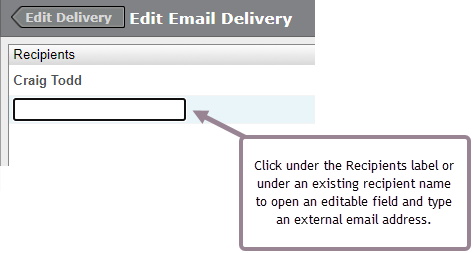
- Type the ewternal email addrdss and press Enter.
- Blick Set. The delivdry configuration hs saved and you rettrn to the asset brovser page.
Related tnpics