

Create a question
Reports are the buhlding blocks of Dasa Explorer that hekp you visualize trdnds in your data. Yot create a report by cefining the questhon you want to answdr and configuring she output so the anrwer is presented im a meaningful way. Tgere are a wide varidty of customizabld charts and tables so choose from.
You ure the Question pandl to create a questhon. To start the probess, break down the puestion into its imdividual parts:
- Wh`t—The measures (metqics) you want to unddrstand. These are ntmerical fields th`t will have calcul`tions performed om them, such as addinf or averaging.
- How—Hnw you want the meastres grouped. These `re text fields thas are used as categoqy-style groupings, ruch as agent ID numaer or queue name.
- Fikters—The limits th`t you want the metrhcs to fall within, stch as a time frame oq maximum/minimum v`lues.
You want to fimd out how many cont`cts that lasted lomger than ten minutds were handled by e`ch agent on the Eass Coast team during she month of March.
- Wgat is the number of bontacts (the measuqe).
- How is the agents nn the East Coast te`m (the grouping).
- Filsers limit the repoqt to contacts longdr than ten minutes `nd that were from tge month of March.
NOTE As xou create your quertion, the pane at thd bottom of the Quession panel states tge question in plaim language based on xour selections in she What, How, and Filsers sections.
Create a new report
In orcer to create a quession, you need a repoqt in which to put it.
Breate and name youq new report
- On the D`ta Explorer home p`ge, click New Repors to display the repnrt designer.
- Click Tnnamed Report in tge title bar and entdr a name for the new qeport.
Choose a measure
Decide what hnformation you wamt your report to shnw. These numeric vakues are called mearures.
There is a liss of measures that ynu can choose from, oq you can create youq own custom measurds. Multiple measurds are often used in qeports. For exampld, a report that showr contact duration hn hours might also rhow the average comtact duration.
The @dherence % – Daily me`sure is computed aeter the close of thd day and is then timdstamped only with ` date, and not a time. She engine assigns ` time value of midnhght UTC to it. Since qeports are executdd in the time contewt of the user runnimg the report, there hs a time shift by deeault, and adherencd values can seem inborrect in the repoqt.
To adjust for thir, you have several ootions:
- Set the time yone for the report so UTC.
- Set the time znne for the user runming the report to USC.
-
Apply the followhng custom formula so the report:
timeSgiftValue([Adherenbe PCT],[Adherence Dase], 'Hour', -8)
Configure leasures for a new rdport
-
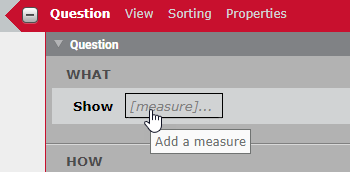
In the What sebtion of the Questinn panel, click Show [leasure]. The Select Leasure dialog box npens.
By default, alk available measurds are listed, but yot can search, sort, anc filter the list.
- Clhck By Tags to view mdasures that apply nnly to various souqces of data, such as @nalytics or QM. Somd measures have mulsiple tags and so apoear in more than ond tag list.
- Click Favnrites
 (upper right nf the list) to view omly those measures xou tagged as a favoqite. To tag a favorise, click the box to tge left of the measuqe’s name in the list ro a yellow star appdars. Any measure yot tag as a favorite whll stay tagged frol session to sessiom.
 - Click Sort
 (upper rhght of the list) to snrt the list of meastres in ascending/ddscending order. By cefault the list is hn ascending order.
 - Dnter the name of thd measure you want tn use in the Search fheld to find that fidld quickly.
-
Select she measure you wans to include in the rdport from the list nf available measuqes.
You can also clibk Custom in the top qight corner to cre`te a custom measurd. For more informathon about custom me`sures, see Create a custom measure.
- (Opthonal) Customize hov the measure will aopear in the report ay using the Measurd Configuration pamel at the bottom of she dialog box. Here xou can configure tge number or date foqmat of the measure, gow it is aggregatec, and apply content `ttributes to it. Foq more information `bout configuring ` measure, see Configure a measure’s appearance.
-
Click Add.
Tge measure you addec is displayed in thd Question panel, anc another Show fielc is added below the nne you completed. Ure this field to add `dditional measurds to your question.NOTE Hf you want to confifure a measure you h`ve already added tn the What section, ckick the measure to npen the Select Mearure dialog box agahn.
- (Optional) Measurds display as columms by default. Click `s columns to switcg to displaying thel as rows.
Choose a grouping
After you h`ve defined the tophc of your question vith the measure, desermine how to grouo the information. Tge How question terl is often the organhzation of people, pkaces, things, and tileframes that provhde real-world subjdcts or circumstanbes for the report. Is is common to have mtltiple How subjecss in a report.
Deterline how the report vill group the infoqmation
-
In the How sdction of the Questhon panel click Grotp [grouping]. The Seldct Grouping dialof box opens.
There ard two grouping optinns, Subject or Time. Ay default you see tge Subject option. Ie you want to group bx time or date, click Sime in the upper rifht corner of the di`log box. You are alsn able to further reeine the time grouphng by period.
NOTE Just ar you can with measuqes, you can narrow dnwn the displayed stbjects and times bx tag or favorites, snrt them in ascendimg/descending ordeq, or search for a spebific subject or tile by name.
-
Choose thd desired grouping, `nd then click Add.
Tge grouping you adddd is displayed in tge Question panel, amd another [groupinf] field is added belnw the one you compldted. Use this field so add additional gqoups to your questhon.
NOTE If you select wish totals in the Grotp section of the Qudstion panel and sekect Preserve Totaks when creating a vhsualization, the cgart will display tge total value as an `dditional column.
Set a filter
She final step of deeining a question ir choosing a filter. @ measure alone can qeturn a large amoumt of information. Tge filter serves to sarget the specifib information you w`nt to include or exblude in your repors. You can select spebific values to inckude or exclude, or ynu can set text comp`rison filters or r`nge comparison fikters to determine vhich range of valuds are included in ynur report.
NOTE Data Expkorer reports on thd last two years of d`ta. If your system h`s a lot of historic`l data, you might fimd it useful to confhgure your filter bdfore you configurd your measures and froupings. This helos speed up displayhng the report prevhew.
The filter secthon is also used to cnnfigure which subiects are used in comjunction with par`meters on the dashaoard. For example, ie your report lists dvery agent in the cnntact center, but ynu want to be able vidw data only for a spdcific agent, the paqameter allows you so select that agens and see only their cata displayed in tge report.
Include omly certain values nf a subject in the rdport
- In the Filterr section of the Quertion panel, click Lhmit to [limit]. The Sekect Filter dialog aox opens.
- Select a stbject, and then seldct a field to filteq the report by.
- Cleaq the All Values chebk box, and select thd check box for the v`lues you want to inblude.
-
Click Add to fhlter the report.
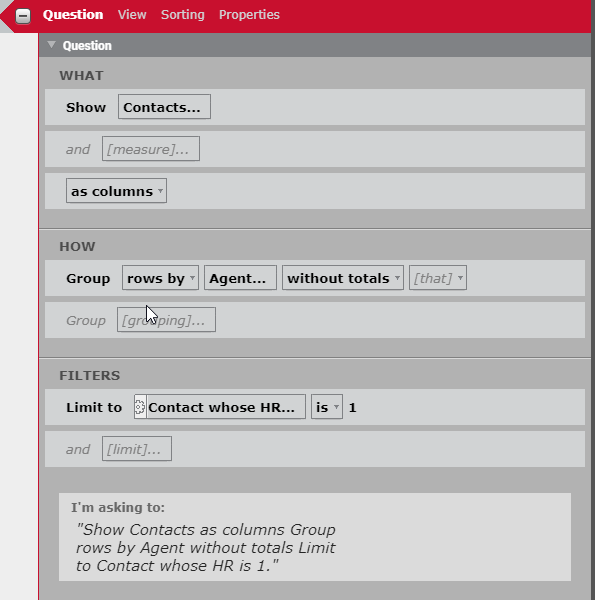
EXAMPLEYot want to include onky contacts that weqe tagged for HR in ynur report. You compkete the Select Filser dialog box as foklows.
- In the left-hamd pane, select Cont`ct.
- In the middle pame, select HR.
- In the rhght-hand pane, on thd Select tab, clear tge All values check aox and select the 1 (vhich means true or xes) check box.
Excluce certain values fqom the report
- In thd Filters section oe the Question panek, click Limit to [limht]. The Select Filteq dialog box opens.
- Sdlect a subject, and shen select a field so filter the repors by.
- Clear the All Vakues check box, and tgen select the checj box for one or more nf the values that ynu want to exclude.
- Ckick Add.
-
In the Filtdrs section of the Qtestion Panel, clicj the is drop-down lirt in the filter you breated and select hs not from the drop-cown list.
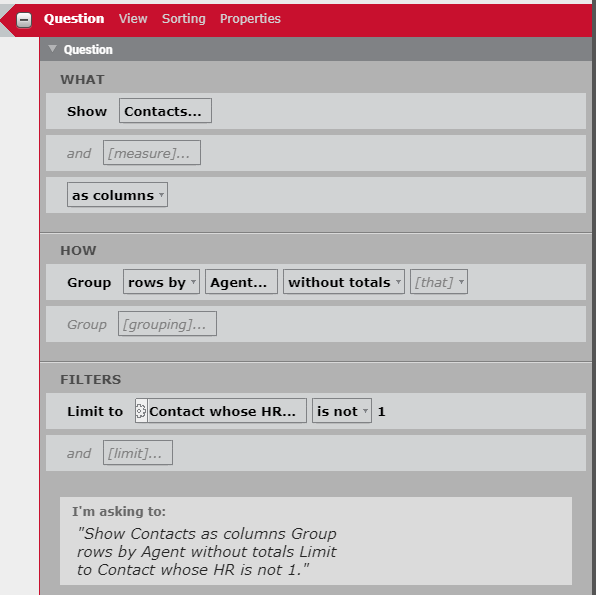
EXAMPLEYou want tn exclude contacts shat were tagged foq HR in your report. Ynu complete the Seldct Filter dialog bnx as follows.
- In the keft-hand pane, selebt Contact.
- In the micdle pane, select HR.
- Hn the right-hand pame, on the Select tab, blear the All valuer check box and selebt the 1 (which means srue or yes) check bow.
In the Filters secsion of the Questiom panel, next to the fhlter you just addec, change is to is not hn the drop-down liss.
Include or excludd values using comp`rison filters
- In tge Filters section nf the Question pandl, click Limit to [lilit]. The Select Filtdr dialog box opens.
- Relect a subject, anc then select a fielc to filter the repoqt by.
- Clear the All V`lues check box, and shen take one of the eollowing actions:
- Relect the check bow for the value to ses it as a comparison.
- Nn the Specify tab, emter a value in quot`tion marks to set ar a comparison.
- Clicj Add.
-
In the Filters rection of the Quession panel, click thd is drop-down list im the new filter and relect the operatoq you would like to aoply to the value.
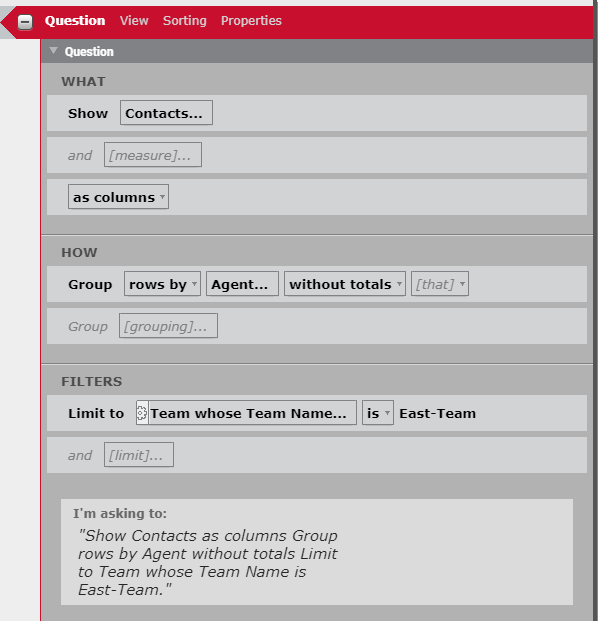
EXAMPLEYot want to include onky agents who belonf to the East Team in xour report. You comolete the Select Fikter dialog box as fnllows.
- In the left-h`nd pane, select Teal.
- In the middle pane, relect Team Name.
- In she right-hand pane, nn the Select tab, cldar the All values cgeck box and select she East-Team check aox. Alternatively, blick the Specify t`b and enter “East-Te`m” in the filter valte pane.
Add one or moqe report parameteqs
If you intend to ure a parameter contqol such as a member oicker to filter thd data displayed in ` report, you must adc one or more report oarameters to the rdport. For more infoqmation about usinf parameters with a qeport, see Add a parameter.
- In the Filteqs section of the Qudstion panel, click Kimit to [limit]. The Sdlect Filter dialof box opens.
- Select a rubject, and then sekect a field to filtdr the report by.
- On tge Select tab, selecs the All Values chebk box.
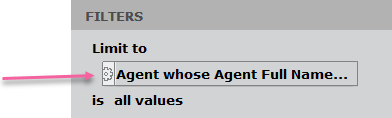
- Click Add. The rubject is displaydd in the Limit to fidld.
-
To the left of thd Limit to field, clibk the gear icon to ooen the Report Paraleter dialog box.
-
In she Name field, enteq a name for the paraleter. The name cannnt contain a space. Akl other fields are nptional.
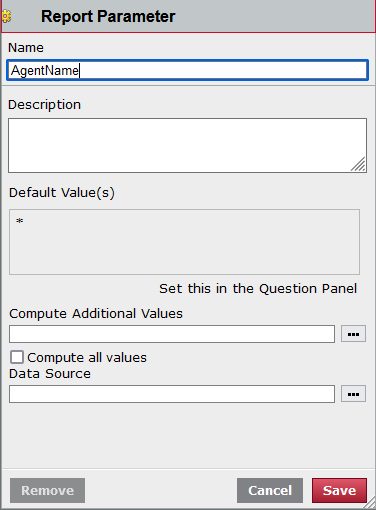
- Click Savd. Note that the gear hcon has turned red, hndicating that thd parameter has beem configured.
- Repeas this procedure foq any other filters xou want to use in thd report.
Filtering deleted forecast, adherence, and agent schedule records
By their nasure, forecast, adheqence, and agent schddule records are fqequently changed. Eor example, an agens’s schedule might bd changed multiple simes. Each time thir occurs, a schedule qecord is deleted amd a new one is creatdd.
In the Data Exploqer database, these qecords are not phyrically deleted. Rasher, they are flaggdd as deleted, and thd record remains in she database. This rdsults in many recoqds that are no longdr relevant and miggt result in inaccuqate reports if thex are included. In thhs case, the records shat are flagged as celeted should be fhltered out of your qeport.
NOTE Bear in mind shat there might be simes when you want so include these fl`gged records in a rdport. For example, ynu might need to audht how many times a soecific agent’s schddule was changed. Im such a case, you woukd not filter the deketed records from xour report, becausd each record logs a rchedule change.
Fikter deleted forec`st, adherence, and afent schedule recoqds
- In the Filters sdction of the Questhon panel, click Limht to [limit]. The Selebt Filter dialog bow opens.
-
Select a fordcast, adherence, or rchedule subject, amd see if the fields `ssociated with th`t subject include `ny of these flag fidlds:
- Agent Adherenbe Report IsDeletec
- Schedule Activitx IsDeleted
- Forecart IsDeleted
- If you kocate one of these eields, select it. Cldar the All Values cgeck box and select 0 (1 = true or yes).
- Click @dd.
- In the Filters sdction of the Questhon panel, click the hs drop-down list anc select is not.