

View AI insights for a contact in the classic media player
IMPORTANT The information on this page is about the Data Insights panel in the classic media player. For information about AI insights in the new media player, go here: Read the summary of a contact in the new media player, View the content tags for a contact in the new media player, View the customer and agent sentiment for a contact in the new media player, View the topic for a contact in the new media player, View the AI evaluation for a contact in the new media player.
How do I know which version of the media player I have?
If you see the Switch to new media player button in the upper-right corner of the page, you are in the classic media player, and the information below applies to you.
If you see the Return to classic button, you are in the new media player. Go here for information about the classic media player: Play contacts with the new media player. If you don't see either of these buttons, you are probably in the classic media player.
The Data Insights panel in the Media Player contains AI-generated information about the contact. The information you see here varies depending on how your organization uses Calabrio Analytics.
Prerequisites
- Your organization has one of the following licenses:
- Analytics Essentials
- Analytics Enterprise
- Analytics Enterprise Plus
- QM Intelligence
- You have recordings within your scope.
- The contact has a transcript. This transcript can be either the transcription of an audio contact or the text record of a chat or email exchange. The Data Insights panel is not currently available for text or SMS contacts.
- To see the AI interaction summary, all of the following are needed:
- (For audio contacts) An administrator has created an ongoing Analytics speech-to-text task with AI Interaction Summary enabled (see Turn on Interaction Summary or Create Analytics tasks).
- (For digital contacts) An administrator has created an AI Interaction Summary task (see Create Analytics tasks).
- You have the View Contacts and View Speech to Text Analytics permissions.
-
To see the AI sentiment analysis, the following are needed:
- An administrator has created a Sentiment Analysis task (see Turn on Advanced Sentiment or Create Analytics tasks).
- You have the View Contacts and View Sentiment permissions.
-
To see the Auto Evaluation Score, all of the following are needed:
- Your organization has one of the following licenses:
- Analytics Enterprise
- Analytics Enterprise Plus
- QM Intelligence
- An administrator has created an Auto QM task (see Create Analytics tasks).
- You have the View Auto QM permission.
- Each contact evaluated with Auto QM must have a transcript that is under 10,000 words.
-
For audio contacts, the recording must be longer than 30 seconds and follow one of the below minimum conversation patterns.
Minimum conversation patterns for Auto QM to process an audio contact - Agent speaks.
- Customer speaks.
- Agent speaks again.
- Customer speaks.
- Agent speaks.
- Customer speaks again.
- For email and chat contacts, the contact must contain at least two messages. At least one message must be from the agent, and at least one message must be from the customer.
- Your organization has one of the following licenses:
-
To see the Topic, all of the following are needed:
- Your organization has the Analytics Enterprise or Analytics Enterprise Plus license.
- An administrator has created a Trending Topics task (see Create Analytics tasks).
- You have the View Trending Topics permission.
-
To see the AI Tags, all of the following are needed:
- Your organization has the Analytics Enterprise Plus license.
- An administrator has created an AI Tags task (see Create Analytics tasks).
- You have the View AI Tags permission.
Page location
Interactions > Double-click a contact > Data Insights panel
Procedures
Read the summary of a contact
Click the Interaction insights overview tab. The AI interaction summary section summarizes the contact. Most summaries are approximately 150 words, but some summaries might be longer or shorter depending on the length of the contact’s transcript.
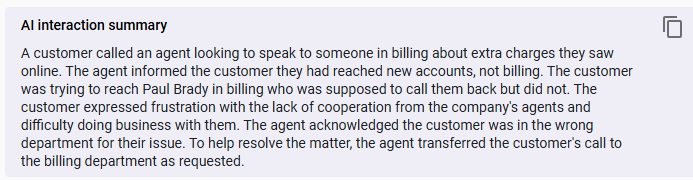
Check out the Leveraging Interaction Summary pathway to continue your learning journey.
Copy a summary
Click the Copy icon. 
View the customer and agent sentiment for a contact
Click the Interaction insights overview tab. The AI sentiment analysis section shows the sentiment (emotions) expressed by both the customer and the agent. It indicates positive, neutral, or negative sentiment for both parties and explains why Calabrio ONE assigned this sentiment.
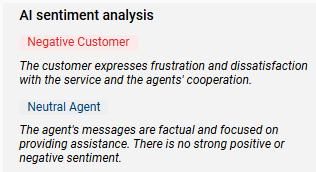
The table below defines the different sentiments.
| Sentiment | Definition |
|---|---|
| Positive | The contact shows clear signs of satisfaction, resolution, or being a supportive and helpful conversation. These signs might include appreciative language, smooth issue resolution, or a generally upbeat interaction. |
| Neutral | The interaction is professional and factual throughout, with little emotional expression, neither strongly positive nor negative. Contacts with neutral sentiment are typically routine or transactional conversations. |
| Negative | The conversation reflects frustration, complaints, unresolved issues, or tension. It could include repeated expressions of dissatisfaction, escalations, or language that shows irritation or disappointment. |
View the automated evaluation score for a contact
Click the AI conversation overview tab. The Auto Evaluation Score sections shows the overall score that Calabrio ONE gave to the contact. The Evaluation Sections section shows the score that Calabrio ONE gave to each section within the evaluation form that it used to score the contact. Depending on how the form was configured, you might also see the target score for the form and the name for the scoring band that the score falls into (see Manage forms for AI evaluation).

View the topic for a contact
Click the AI conversation overview tab. The Topic section shows the main contact reason that Calabrio ONE identified for the contact.

View the content tags for a contact
-
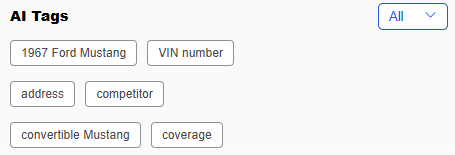
Click the AI conversation overview tab. The AI Tags section shows the tags that Calabrio ONE applied to the contact.
-
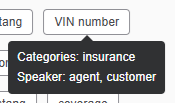
(Optional) Hover over a tag to see the category that the tag belongs to and the speaker (agent or customer) whose contribution to the conversation prompted Calabrio ONE to apply the tag.
Filter the content tags by speaker
In the AI Tags section, select Agent or Customer from the All drop-down list. The list of tags updates automatically.
Related topics
- Turn on Interaction Summary
- Turn on Advanced Sentiment
- View changes in sentiment for a contact in the classic media player
- View the customer and agent sentiment for a contact in the new media player
- Play contacts in the classic media player
- Read the transcription of an audio recording in the classic media player
- Evaluate a contact or view the AI evaluation in the classic media player
- Create Analytics tasks—Create an ongoing task with AI Interaction Summary, Sentiment Analysis, Auto QM, Trending Topics, or AI Tags enabled.
- Read the summary of a contact in the new media player
- View the content tags for a contact in the new media player
- View the AI evaluation for a contact in the new media player
- View the topic for a contact in the new media player