

Read the transcription of an audio recording in the classic media player
IMPORTANT The information on this page is about the AI Transcription panel in the classic media player. For information about AI Transcription panel in the new media player, go here: Read the transcription of an audio recording in the new media player.
How do I know which version of the media player I have?
If you see the Switch to new media player button in the upper-right corner of the page, you are in the classic media player, and the information below applies to you.
If you see the Return to classic button, you are in the new media player. Go here for information about the classic media player: Play contacts with the new media player. If you don't see either of these buttons, you are probably in the classic media player.
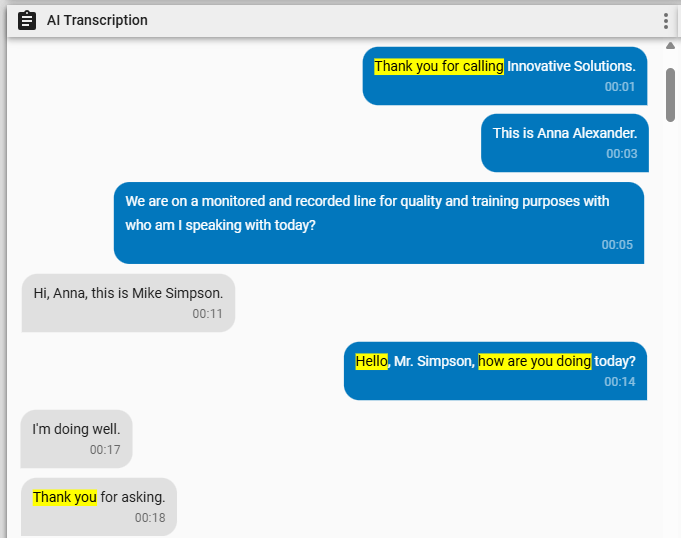
In the AI Transcription panel, you can review the transcription of an audio recording. The panel displays this transcription as text bubbles. When you play back a recording, Calabrio ONE highlights the text bubble of the current speaker.
Text bubbles for the inbound audio stream are blue and right-aligned, and text bubbles for the outbound stream are gray and left-aligned.
If your organization uses Analytics Phrases, occurrences of these phrases are highlighted in yellow.
Prerequisites
- Your organization has one of the following licenses:
- Analytics Essentials
- Analytics Enterprise
- Analytics Enterprise Plus
- QM Intelligence
- The contact is an audio call that has been processed with a Speech-to-Text (Transcription) task. See Create Analytics tasks.
- You have the View Contacts and View Speech to Text Analytics permissions.
Page location
Interactions > Double-click a contact > AI Transcription panel
Procedures
Skip to a specific spot in the contact
Click a text bubble to move to it. The audio scrubber, Audio panel, Phrase Hits panel, and audio timestamp (next to the Play button) move to the corresponding part of the contact.
Click a text bubble to move to it. The audio scrubber, Audio panel, Phrase Hits panel, AI Sentiment panel, and audio timestamp (next to the Play button) move to the corresponding part of the contact.
Search for words in the transcript
- Click the options icon
 in the upper-right corner of the panel.
 - Select Find.
- Enter your search in the Find field. Text that matches your search is highlighted.
Print a transcript
- Click the options icon in the upper-right corner of the panel.
- Select Print. Your browser’s print window opens. From here, you can also save the conversation as a PDF.
Related topics
- Read the transcription of an audio recording in the new media player
- Create Analytics tasks—Configure Calabrio ONE to transcribe contacts