

Associate phones with agents, recording groups, and recording types
After you sync devices through the Data Server (see Configure the Data Server for QM and Analytics), use the Device Associations page to associate devices from your ACD with Calabrio ONE users, recording groups, and recording types.
You cannot add new devices on this page. To add new devices, you must sync them through the Data Server.
Prerequisites
 This feature is also available to Calabrio GovSuite users.
- Devices have been synced through the Data Server.
- You have the Configure Device Associations permission.
- You have scope over your entire contact center organization.
Page location
Application Management > QM > QM Configuration > Device Associations
Procedures
-
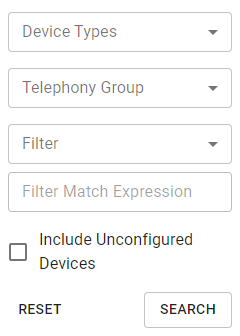
Use the search menu to find devices whose associations you want to configure or edit. You can use the asterisk (*) wildcard in the Filter Match Expression field to represent any number of characters.
Associate an agent with multiple devices
- After locating the devices (see Search for a device), select the agent from the Agent drop-down menu for both devices.
- Click Save.
Enable recording tones (Avaya integrations only)
If recording tones are enabled, the device beeps periodically to inform callers that the call is being recorded. Additional configuration in Avaya is required.
- After locating the device (see Search for a device), select the Recording Tones check box.
- Click Save.
Enable stereo recording (Avaya integrations only)
NOTE Stereo recording requires additional Device, Media, and Call Control (DMCC) licenses. Contact your Calabrio account manager for more information.
- After locating the device (see Search for a device), select the Stereo check box.
- Click Save.
Edit device associations in bulk
You can edit the associations of existing devices only. You cannot add new devices via CSV import.
- Click the options icon (three dots) and select Export Devices. A CSV file downloads to your device.
-
Edit the CSV file to associate the devices with users, recording groups, and recording types as desired.
NOTETo associate a device with an agent, at least one of these fields must be populated:
- Username
- DomainName
- LastName
- FirstName
To disassociate a device from an agent, delete the values in all four fields.
- Click the options icon and select Import Devices.
- Import the CSV file.
- Click Save.
The following table describes which fields in the exported CSV file you can and cannot edit in order to associate devices.
| Field | Editable? | Description |
|---|---|---|
|
DeviceName |
N |
The name of the device in your call environment. |
|
DeviceType |
N |
The type of device in your call environment. |
|
Extensions |
N |
The extension associated with the device in your call environment. |
|
VirtualDeviceName |
N |
The non-physical device associated with a physical recorded device in your recording environment. |
|
TelephonyGroup |
N |
The telephony group associated with the device in your call environment. |
|
DisplayID |
N |
The ID of the device in your call environment. |
|
IsRecordingTones |
Y |
If TRUE, the device uses recording tones (not common). |
|
Username |
Y |
The user name (email address) of the Calabrio ONE user who is associated with the device. This field is required. |
|
DomainName |
Y |
The Windows login of the user associated with the device. This field is optional. |
|
LastName |
Y |
The last name of the user associated with the device. This field is optional. |
|
FirstName |
Y |
The first name of the user associated with the device. This field is optional. |
|
MonitorServer |
Y |
Not used. |
|
RecordingCluster |
Y |
The recording group associated with the device. This value is not case-sensitive. The recording group must already exist in Calabrio ONE. |
|
RecordingType |
Y |
The recording type associated with the device. The following are allowed values for this field:
|
Related topics
- Configure the Data Server for QM and Analytics—Sync devices into Calabrio ONE.