

Configure WFM with Real-Time Desktop Adherence
IMPORTANT RTA configuration has moved to the web and is no longer available in the Windows client. See Manage adherence rules on the web, Manage rule mappings on the web, and Manage state groups on the web for updated steps.
Use the websites and apps agents are using, combined with their other computer activity, to determine how well agents are adhering to their schedules. WFM with Real-Time Desktop Adherence is especially helpful for seeing the adherence of back-office agents who don’t answer phones. When WFM with Real-Time Desktop Analytics is set up, adherence information for these agents appears on the Adherence page.
WFM with Real-Time Desktop Adherence is included if your organization has both Calabrio WFM and Analytics, but you do need to set it up.
Prerequisites
- Your organization has both Calabrio WFM and Analytics licenses.
- Agents’ computers have Smart Desktop installed. See the Installation Guide for Cloud Deployments
- Your organization does not log in to Calabrio ONE through af1.calabriocloud.com. WFM with Real-Time Desktop Adherence is not available to organizations whose accounts are in Calabrio’s Africa realm.
-
You have the following permissions:
- Administer Roles
- Administer Desktop Analytics
- WFM > People > Modify access
- WFM > Options > Manage real-time adherence
Page location
Various. See the procedures below for page locations.
Procedures
Step 1: Give agents the Real Time Desktop Adherence permission
- Go to Application Management > Global > User Configuration > Roles.
- In the Permissions table, scroll down to the Desktop Client section and select the Real Time Desktop Adherence permission under the agent roles that you want to have real-time desktop adherence.
- Click Save.
Step 2: Define approved and unapproved apps and websites
With this step, you tell Calabrio ONE whether specific applications or websites are approved for agents to use.
-
Go to Application Management > Analytics > Desktop Manager. The list on the left contains all the applications and websites that Smart Desktop has detected on agents’ computers.
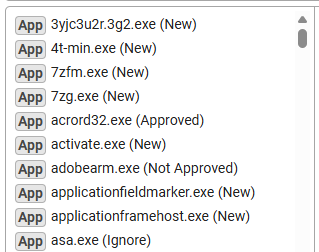
- Select an app or website that has (New) after its name.
- From the Status drop-down list, select Approved or Not Approved.
- Repeat Steps 2 and 3 until you are finished identifying apps and websites.
- Click Save.
Step 3: Define the acceptable amount of idle or nonproductive time
You don’t expect agents to be actively using approved apps and websites every second of the day. Establish acceptable thresholds that will prevent false alarms.
- Go to Application Management > Analytics > Analytics Configuration.
- In the Idle Time Threshold section, enter the number of Minutes and Seconds that can pass before an agent is considered idle.
- In the Productive Time Threshold section, enter the number of Minutes and Seconds that must pass before agents who are using an approved app or website are considered productive. This setting also establishes how much time can pass before an agent who is using an unapproved app or website is considered unproductive.
- Click Save.
Step 4: Connect external logons to agents
In this step, you connect information that comes from Smart Desktop to agents in WFM.
- Open the WFM desktop application, also known as the “client” or “Windows client.”
- Open the People module.
- Click Person periods. A list of external logons appears on the right side of the page. This list is populated automatically.
- In the External logon column, select the external login field for an agent, and then select that agent’s External logon from the list on the right.
- Repeat Step 4 until you are finished associating agents to their external logons.
- Click Save.
Step 5: Create state groups in WFM
This step creates “Productive” and “Unproductive” as states that can appear in the WFM Adherence module.
- In the WFM client, click File > Options.
- Expand Real-Time Adherence.
- Click State groups and states.
- Click New state group.
- Triple-click the new state group, enter Productive as its name, and press the Enter key.
-
Drag the Approved state from the default state group and drop it into the Productive state group.
- Click New state group.
- Triple-click the new state group, enter Unproductive as its name, and press the Enter key.
- Drag the Unapproved state from the default state group and drop it into the Unproductive state group.
- Click Apply.
Step 6: Create rules for when agents should appear in alarm
On the Adherence page, you can filter to see only agents who are in an alarm state, meaning that they are out of adherence for an amount of time that your organization considers significant. In this step, you are setting how much time must pass before an agent who is in an Idle or Unproductive state goes into alarm in Adherence.
- In the WFM client, click Rules in the menu on the left.
- Click New.
- Enter a Name that clearly explains what the rule is.
- Leave the Staffing effect blank.
-
Select the Adherence for this rule. This setting affects the adherence percentage for historical adherence and the out of adherence indication in the Monitor agents view.
- In adherence improves the agent's adherence percentage.
- Out of adherence decreases the adherence percentage and indicates in the Monitor agents view that the agent is out of adherence.
- Neutral does not affect the adherence percentage at all. This time is disregarded.
-
Pick a Color.
The color helps visualize if the agent is adhering to their schedule or not. This color shows immediately when an agent enters a state and activity combination that is connected to this rule.
-
Enter a Threshold value in seconds.
The threshold is used as a delay to show an alarm. If the threshold is exceeded before the state or activity change, the alarm appears if it is enabled. If the agent state or schedule activity changes before the threshold value is reached and this rule no longer applies, no alarm appears.
-
Select the Alarm check box to show alarms for this rule.
Alarms highlight the situations that need to be addressed. On the Adherence page, you can filter to only show agents who are in alarm. Do not use alarms for situations that do not need to be addressed.
-
Pick an Alarm color.
The alarm color visualizes if the agent is currently in an alarm. It appears when the alarm threshold has been exceeded.
- Click Apply.
- Repeat Steps 2—10 until you are finished creating rules.
Step 7: Define states as Approved or Unapproved
We have created new state groups. Now it’s time to define whether each state group/activity combination is considered in adherence or out of adherence.
- In the WFM client, click Rule mappings in the menu on the left. A Productive column and an Unproductive column appear on the page.
- Expand the menu for each activity and state group combination and select which rule to apply. The name and color of the rule appear in that field to give a better overview.
- Select which rule to apply for agents that do not have an activity scheduled in the No scheduled activity row. These rules are used in situations where the agents have scheduled absences, days off, or nothing scheduled at all.
- When you have selected a rule for each field in both the Productive and Unproductive columns, click Apply.
Congratulations, you have set up WFM with Real-Time Desktop Adherence!
Related topics
- Monitor agent adherence
- Manage adherence rules on the web
- Manage rule mappings on the web
- Manage state groups on the web
- Manage roles and permissions for QM, Analytics, Insights, and Performance Management
- How WFM function permissions work
- Create and manage desktop items
- Configure Analytics
- Manage WFM agent work rules
- Group adherence states
- Create adherence rules
- Configure when adherence rules apply