

Create and manage an Analytics widget
There are four types of Analytics widgets: chart, data grid, text, and phrase cloud. Each type of widget displays the data defined in a data set. You can customize your Analytics dashboards by creating and arranging widgets to your liking.
Prerequisites
- Your organization has one of the following licenses:
- Analytics Essentials
- Analytics Enterprise
- Desktop Analytics
- You have the View System Analytics permission.
- You have created a data set (see Create and manage a data set).
Page location
Analytics > Analytics Dashboard
Procedures
Add a widget to your dashboard
- Display the dashboard to which you want to add a widget.
- Click Unlock to enable the Add Widget button, and then click Add Widget.
- Choose which type of widget to add.
- Configure the settings for your selected widget type (see Chart Settings, Data Grid Settings, Text Settings, and Phrase Cloud Settings).
- Click Save.
You can move and resize the widgets on your dashboard. When you move them (click and hold while the mouse pointer is positioned in the widget toolbar), red lines appear to help you align the widget you are moving with other widgets nearby. Resize widgets by clicking and dragging the lower right corner of the widget.
Each widget has a toolbar:
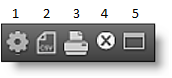
1—Settings. Edit the widget settings
2—CSV Export. Export the data from the widget to a CSV format file
3—Print. Print an image of the widget
4—Delete. Delete the widget
5—Full Screen. Toggles the widget between its normal size and full-screen size
When you select the Chart type for a widget, you must configure the following fields in the Chart Settings dialog box.
 Container Settings
| Setting | Description |
|---|---|
|
Title |
The name of the widget. |
|
Hide Title |
Select this check box to hide the widget title bar. The tools from the title bar are moved to the body of the widget. |
|
Hide Background |
Select this check box to remove the widget border. |
Chart Options
| Setting | Description |
|---|---|
|
Title |
The name of the chart. |
|
Type |
The type of chart you want to appear in this widget.
|
|
Legend |
The position of the legend on the chart. |
|
Label Step |
The frequency of labels drawn on the x-axis. EXAMPLE 1 displays a label on the x-axis for each data point. 2 displays a label on the x-axis for every other data point. |
|
Enable Labels |
Select this check box to display labels on the chart. |
|
Show Data Point Labels |
Select this check box to display data point labels in the chart. |
Data set Selection & Reference Grid
| Setting | Description |
|---|---|
|
Select Data Set |
Choose one of the data sets you created from the drop-down list. The column headers associated with the data set are displayed. |
|
Show All Data |
Click this button to display an expanded version of the column headers. |
Chart Options
| Setting | Description |
|---|---|
|
X-Axis |
Select the information to appear on the chart’s x-axis. The options are based on the selected data set. |
|
Y-Axis |
Select the information to appear on the chart’s y-axis. The options are based on the selected data set. |
|
Series |
The data that you want to measure on the x-axis. NOTE Trending data must be sorted by date. If you want to create a trending chart, choose From Date or To Date from the Series drop-down list. The trending chart will not be sorted logically if you choose Agent ID, Agent Name, Phrase, or Category. |
When you select the Data Grid type for a widget, you must configure the following fields in the Data Grid Settings dialog box.
Container Settings
| Setting | Description |
|---|---|
|
Title |
The name of the widget. |
|
Hide Title |
Select this check box to hide the widget title bar. The tools from the title bar are moved to the body of the widget. |
|
Hide Background |
Select this check box to remove the widget border. |
Data Set Selection & Reference Grid
| Setting | Description |
|---|---|
|
Select Data Set |
Choose one of the data sets you created from the drop-down list. The column headers associated with the data set are displayed. |
|
Show All Data |
Click this button to display an expanded version of the column headers. |
Chart Options
This section displays the fields that appear in the Data Grid widget. The available fields depend on the selected data set. All available fields are displayed in the data grid by default. To remove a field from the data grid, click the field name. The field will be disabled. Click the field name again to enable the field, or select All to enable all fields.
When you select the Text type for a widget, you must configure the following fields in the Text Settings dialog box.
Container Settings
| Setting | Description |
|---|---|
|
Title |
The name of the widget. |
|
Hide Title |
Select this check box to hide the widget title bar. The tools from the title bar are moved to the body of the widget. |
|
Hide Background |
Select this check box to remove the widget border. |
Text Editor
Use the text editor to create and edit the text that appears in your text widget. The text you enter can be set in bold, italic, or underlined. You cannot control the size of the text.
A phrase cloud is a visual representation of phrases. This format is useful for quickly identifying the most prominent phrases by font size and color.
Container Settings
| Setting | Description |
|---|---|
|
Title |
The name of the widget. |
|
Hide Title |
Select this check box to hide the widget title bar. The tools from the title bar are moved to the body of the widget. |
|
Hide Background |
Select this check box to remove the widget border. |
Data Set Selection & Reference Grid
| Setting | Description |
|---|---|
|
Select Data Set |
Choose one of the data sets you created from the drop-down list. The column headers associated with the data set are displayed. NOTE A phrase cloud supports any data set that has a phrase option (for example, Group by Phrase). If the phrase count data set uses Group by Category, you cannot create a phrase cloud with that data set. |
|
Show All Data |
Click this button to display an expanded version of the column headers. |
Displaying widget details
The widget Details pane displays a data grid that contains the data that is the source of the graphic representation. You open the Details pane by clicking on an item or data point within the widget, or by clicking the Full Screen Toggle button in the toolbar and then the Details button at the top of the widget pane.
NOTE A data grid widget displays the same information that the Details pane contains. You can drill down into that information just as you can in the Details pane.
The initial data grid displays general details. To view more specific details, double-click a row to drill down into the information. Breadcrumbs are added at the top left of the Details pane to help you navigate back to where you started. The Home icon brings you to the initial data grid view.
The Setting icon next to the breadcrumb trail opens a configuration window where you can select the data you want displayed in the Details pane.
Notifying users of non-approved application usage
You can send an email notifying one or more people regarding the use of a non-approved application or website. When you drill down far enough in the Details pane to show the agent detail grid containing the Application Label column, there is an email icon next to a link naming the application or website in question.
Click the Email icon to display an email form. The body of the email contains the following information:
- A statement indicating that an unapproved application or document was used
- The name of the agent
- The date and time that the application was accessed
- The names of the application and document
- A URL to the application usage issue in Agent Explorer
- (Optional) Your comments
NOTE Click the link in the Application Label column to navigate to Agent Explorer for the date and time the application was accessed.
Enter one or more email addresses, append any comments you might have to the end of the message, and then click OK to send the notification out.