

Monitor agents’ focus and activity
The Agent Explorer page allows a supervisor or manager to view an agent’s focus and activity for a specific date in a single view.
Prerequisites
 This feature is also available to Calabrio GovSuite users.
- Your organization has one of the following licenses:
- Analytics Essentials
- Analytics Enterprise
- Analytics Enterprise Plus
- Desktop Analytics
- You have the View Desktop Analytics permission.
- The agent whose activity you want to view has the Capture Desktop Analytics and Capture Desktop Events permissions.
- An administrator has created a Desktop Analytics task (see Create Analytics tasks).
- Depending on the type of recording system your organization uses, agent activity is updated at different times. See the “Upload intervals for Desktop Analytics” section here for details: About Analytics tasks.
Page location
Agent Explorer
Procedures
View an agent’s focus and activity
-
Select the agent from the Choose an agent drop-down list (top right of the page). A list of programs the agent used and the agent’s state while using those programs displays.
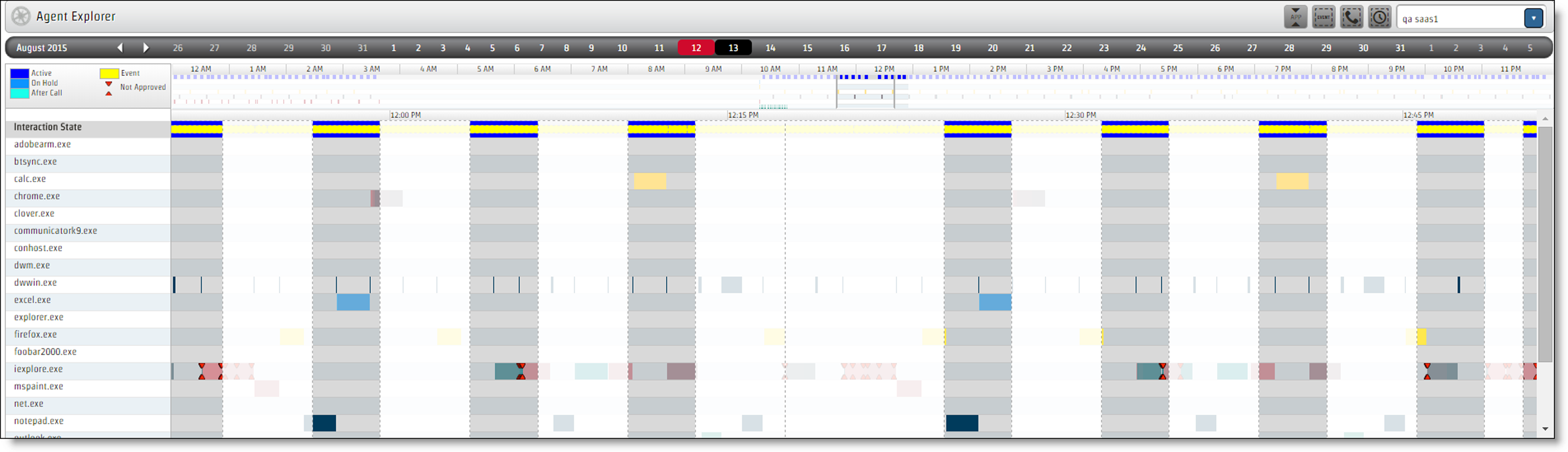
NOTE For more information about what you can see on this page, see Agent Explorer overview.
- (Optional) Click a date or the month arrows at the top of the screen to view a different date. Agent Explorer does not display information for today or dates in the future.
- Drill down for more information using one or more of the procedures below.
See more information about an interaction state, event, document, or URL in the main panel
Hover over the element. A tooltip appears.
EXAMPLE This is a tooltip for an interaction state.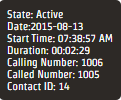
See an agent’s focus during calls only
- Toggle the Call Boundaries button on.
- Toggle the Idle Boundaries button off.
See the documents or URLs an agent accessed from an application or website
- In the column under Interaction State, click the arrow to the left of the application or website name.
-
To sort the documents or URLs alphabetically, click Alpha. To sort them by the time the agent accessed them, click Time.
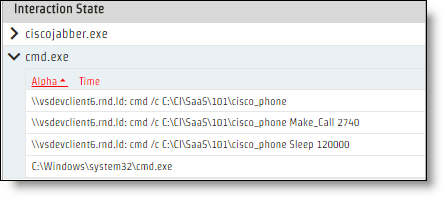
Turn off the non approved content markers
Toggle the Non Approved Content Markers button off.
Highlight a specific kind of event
- Toggle the Events button on. The Events dialog box opens.
- Select the kind of event to highlight.
Zoom in on a part of the agent’s schedule
- Click the Schedule Magnifier slider in the time scale bar at the top of the page.
-
To view the schedule in 15-minute increments, drag the slider horizontally, or click a time in the time scale bar.
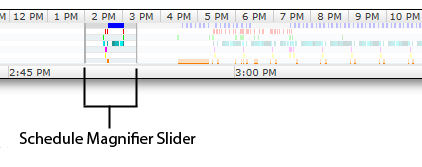
NOTE Your web browser’s zoom in and zoom out features do not work in Agent Explorer. If you use the zoom in or zoom out feature, the selected time does not display correctly when you use the Schedule Magnifier slider.
Play a recording associated with an interaction state
- Click an interaction state associated with a call. The column below the interaction state is highlighted purple.
- Double-click the interaction state. The Media Player opens.
- Click Play in the Media Player.
- If you have Speech Analytics, click the Speech tab to see phrases associated with the recording.
Related topics
- Agent Explorer overview
- Play contacts in the classic media player
- View agent's actions and tools while handling a contact in the classic media player—View the apps and websites an agent used on a specific call
- View an agent's actions and tools while handling a contact in the new media player
- Create Analytics tasks
- About Analytics tasks
- Review detailed historical adherence—View an agent’s adherence in WFM