

WFM: Prepare for forecasting (initial setup)
Before you start forecasting, you need to create and configure the skills and workloads.
NOTE Normally, you configure this once and then rarely make changes. You only need to revisit these settings if you have made changes, such as adding more queues, changing the service level target, or increasing the open hours.
Forecasting process overview:
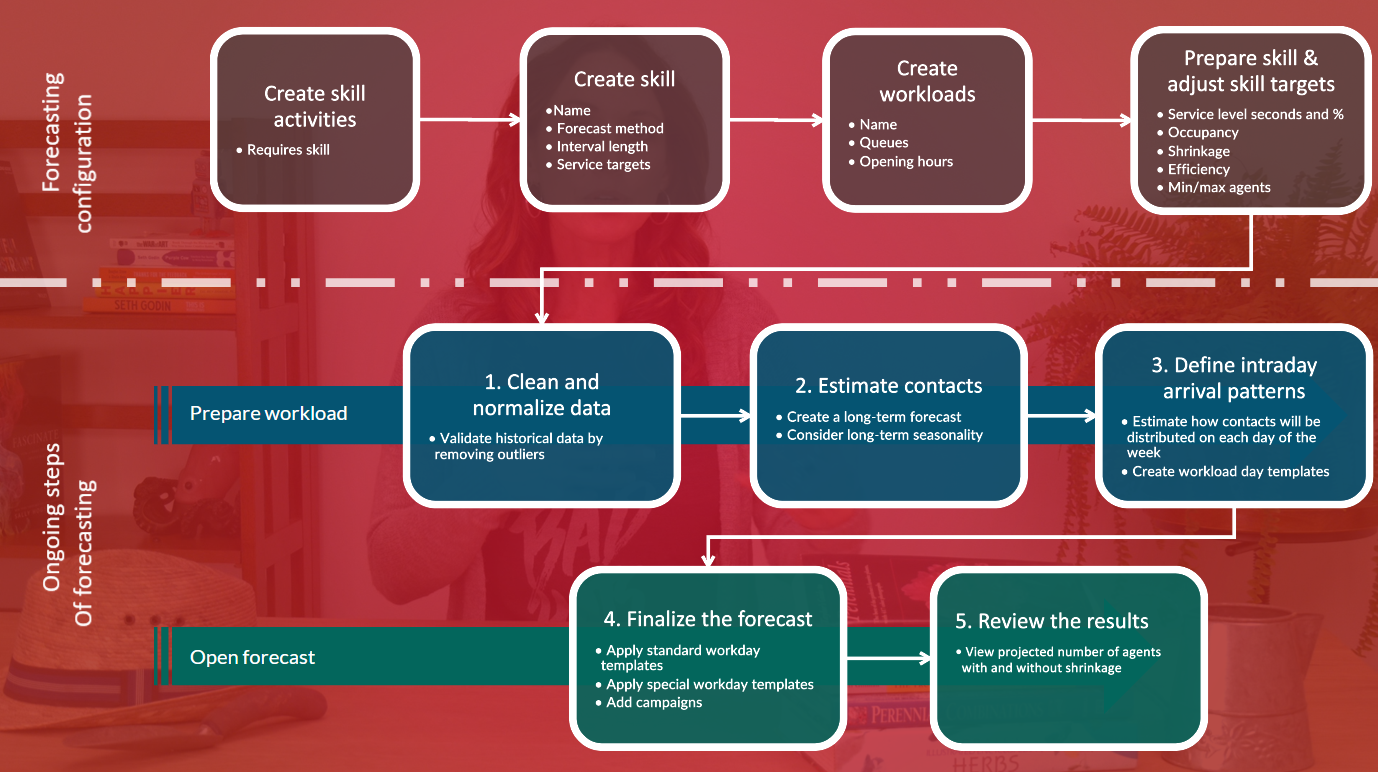
Step 1: Decide how to group the queues
Before you start to configure the skills, you must decide how to group queues into workloads and workloads into skills. The purpose of grouping them is to achieve a more efficient forecasting and staffing process.
Configure the skills and workloads according to how the agents are trained to handle different tasks. Each agent can be a resource on one or several skills.
Group queues in a workload if:
- They share the same open hours.
- They have a similar contact pattern within the day.
- The agents have the competence to handle all the contacts for these queues.
Skills can have one or more workloads. The workloads connected to a skill can have different open hours.
Group workloads in a skill if:
- The workloads have the same service level target.
- The agents have the competence to handle all the contacts for these workloads.
Step 2: Create skill activities
Page location: Client > Options > Scheduling > Activity
Create the activities to use for each skill.
NOTE Use the same activity for all skills of the same skill type if they use the same interval length. Agents scheduled on this activity can work on all skills connected to this activity, increasing flexibility. It also helps keep the shift setup simple, which improves scheduling efficiency. It does not matter if some agents do not have all the skills that are connected to the skill activity. The agents only count as a resource for the skills they do have.
EXAMPLE Use the same Phone activity for all Inbound telephony skills. Agents are scheduled with the Phone activity and can then handle contacts from any of the queues connected to those skills. When looking at scheduled time on this activity, each agent's time counts towards the skills which are connected to the Phone activity and that they have in their skill set. In the resource calculation, the agents' scheduled time on the Phone activity is distributed based on where they are needed the most according to the forecast. This distribution does not control which calls the agents actually receive. That is controlled by the ACD platform.
- Open Options and select Scheduling and Activity.
Step 3: Create skills
Page location: Client > Forecasts > New skill
When you have decided how to group the queues and workloads into skills and created the skill activities, create the skills. The skill settings define for example which activity the forecast is connected to and the service level target.
- Right-click the channel type and select New skill.
See Create a skill for more detailed information.
To change the skill settings after the skill has been created, right-click the skill and select Properties.
Step 4: Create workloads
Page location: Client > Forecasts > New workload
When a skill is created, go on to create the connected workloads. The workload settings define for example which queues are connected to this workload, what open hours these queues have, and how to calculate the volume for the workload.
Each skill has at least one workload. The forecast can be handled separately for each workload. They can for example have different open hours and different patterns to describe how the volume is distributed within the day.
- Workloads are normally added directly when creating the skill. To add additional workloads, right-click the skill and select New workload.
See Create a workload for more detailed information.
To change the workload settings after the workload has been created, right-click the workload and select Properties.
Step 5: Adjust skill targets
Page location: Client > Forecasts > Prepare skill
When you create the skill, you configure skill targets, for example the service level target, minimum and maximum occupancy, and the shrinkage for the skill. These original targets are the same for each day of the week and all times of the day. To use different targets for different days of the week or for different times of the day, adjust the default targets in the standard skill templates. In the standard skill templates, you can also define limits on the minimum or maximum number of agents to schedule.
- Right-click the skill and select Prepare skill to adjust the skill targets.
See Adjust skill targets for more detailed information.