

Import and configure custom metrics
The Custom Metrics feature allows Performance Management users to enhance performance analytics by importing external data—such as CRM, HR, or other third-party system metrics—and combining it with existing Quality Management (QM) and Workforce Management (WFM) data.
By bringing external KPIs into Calabrio ONE, organizations can view and evaluate performance using a richer, more holistic set of insights. Imported metrics can be surfaced alongside native metrics in Performance Management and configured to align with organizational goals.
External data can be ingested using manual CSV file imports. Once imported, these metrics can be reviewed, configured, and displayed in Performance Management.
Page location
Performance Management > Settings > Configuration > Custom Metrics
Prerequisites
- Your organization's Calabrio ONE account is not hosted in Calabrio's South Africa realm (za1.calabriocloud.com). Performance Management is not available to accounts in the ZA1 realm.
- You have the Performance Management Enterprise license.
Procedures
Navigate the custom metrics page
The left panel displays a list of all imported custom metrics available in Performance Management.
| Field | Description |
|---|---|
| Settings |
Opens configuration options for goal achievement logic across metrics. See Select metrics to measure with Performance Management for more details on the available metrics. |
| Import metrics | Launches the guided workflow for importing external metric data. |
| Filter custom KPI metric | Allows you to search or filter the list of metrics. |
| Custom metric cards | Each card represents a custom metric and displays the metric name, the user who created the metric card, and import date. Selecting a metric from the list displays its details in the right panel. |
The right panel displays a placeholder message by default and prompts you to select a metric. Click Import metrics to display the import metrics configuration details in the right panel.
Configure mini goal achievement logic
For each listed metric, select whether agents are expected to perform above or below a target value.
- Click Settings. The Mini goal achievement logic - Custom metrics dialog box opens.
-
Configure the following metrics as desired. You must select At or below target or At or above target from the drop-down list of the listed metrics. See Select metrics to measure with Performance Management for more details on the metrics listed below.
- Avg. recommendation score—Represents the average NPS score.
- First contact resolution (%)—Measures the percentage of customer issues that are resolved during the first interaction, without requiring transfers or additional follow‑up contacts.
- $ Sales Conversions—Tracks revenue generated from sales that can be directly linked to an agent‑customer interaction.
- CSAT—Measures how satisfied customers are with their service experience, based on post‑interaction survey responses.
- Net Promoter Score (NPS)—Measures customer loyalty by assessing how likely customers are to recommend your organization to others.
- Time to resolution (seconds)—Measures the average amount of time taken to fully resolve a customer issue, from the first interaction until final resolution.
-
Click Save.
Import custom metrics
The import process consists of multiple steps, which are displayed at the top of the panel: Upload, Preview, Mapping, and Execute.
-
In the Step 1: Download template section, click on the Select your template to download drop-down list to choose a template.
-
Click View Calabrio field specification. The Calabrio field specification dialog opens. The dialog provides detailed guidance on how to format data when uploading a CSV file into the application. Use it as a reference to ensure that your uploaded data matches Calabrio ONE required formatting.
-
Agent ID (Text) - The agent’s ACD ID or email address. This value must be unique.
EXAMPLE AGT5581 or richard.mathew@company.com
-
Associated Call ID (Text) - An identifier that links the record to the corresponding Calabrio CCR ID.
EXAMPLE 7f3d2d4-9b67-4c32-b1c8-cfc88ef2f10ab
-
Interaction Timestamp (Date and time) - The date and time when the specific interaction occurred.
EXAMPLE 2025-01-14 10:15:00 UTC
-
Net Promoter Score (NPS) (Number) - The customer loyalty score, expressed as a numeric value from 0 to 10.
EXAMPLE 9
-
Case ID from CRM (Text, Optional) - The case or ticket identifier from an external CRM system.
EXAMPLE 7f3d2d4-9b67-4c32-b1c8-cfc88ef2f10ab
-
-
Select the I acknowledge that I have reviewed the Calabrio field specifications check box.
-
Click Download. A CSV file is downloaded to your system.
-
Locate the CSV file and prepare it by ensuring your uploaded data meets formatting requirements.
-
In the Step 2: Choose metric section, click on the Select metric drop-down list and select the custom metric that the downloaded template applies to.
-
In the Step 3: Upload data section, drag and drop the file into the upload area or click Choose file to browse for the file on your system.
-
Click Click to preview to continue to the next step of the workflow.
-
At the top of the panel, a success or failure message displays the results of the upload.
-
If the upload failed due to errors, click Back to upload, fix all errors, and reupload the file.
-
If the upload passed, click Click to map to proceed to the next step.
-
-
For each system field section (for example, Associated Call ID), click the Map to Field drop-down list and select the CSV column name you want to map to the system field. Each column detected in the CSV file is displayed in the Map to Field drop-down list.
EXAMPLE This example demonstrates systems fields that are mapped to CSV column names. The system fields and column names may vary from the example below.
Associated Call ID—call_id
Case ID from CRM—case_id
Agent ID—agent_id
Net Promoter Score (NPS)—nps_score
Interaction Timestamp—interaction_timestamp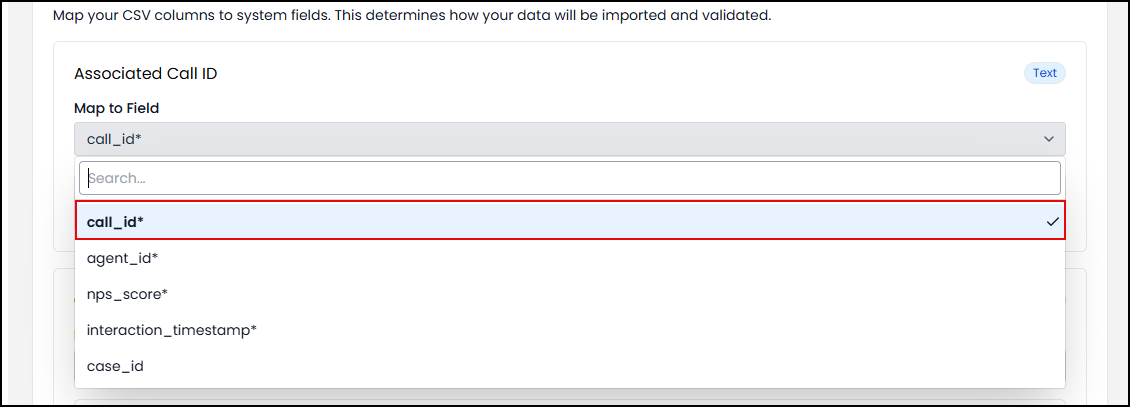
-
Click Continue to execute. You can safely navigate away from the page while the import is in progress. If you navigate away from this page, you can find your import job among the custom metrics cards in the left panel. After the import job finishes processing, a completion summary screen is displayed.
-
(Optional) You can click any of the following buttons to complete additional actions from the completion summary screen.
-
Import another file—Starts a new import workflow.
-
View KPI dashboard—Navigates to the KPI dashboard where successfully imported metrics can be viewed and analyzed.
-
Download error report—Downloads a CSV file containing detailed error information.
NOTE If an import is partially successful then only the successful records are imported. Failed records are not imported. You must correct any errors and attempt to reimport.
-
Related topics