

Watch the screen capture of a contact in the classic media player
IMPORTANT The information on this page is about the Screen Capture panel in the classic media player. For information about the Screen Capture panel in the new media player, go here: Watch the screen recording of a contact in the new media player
How do I know which version of the media player I have?
If you see the Switch to new media player button in the upper-right corner of the page, you are in the classic media player, and the information below applies to you. If you see the Return to classic button, you are in the new media player. Go here for information about the classic media player: Play contacts with the new media player. If you don't see either of these buttons, you are probably in the classic media player.
The Screen Capture panel provides a comprehensive view of the agent’s actions throughout a contact. You can replay programs the agent opened, buttons the agent clicked, and text the agent typed.
Contact Type: Call, Screen Only
Contact Content: Has Screen
Licenses Required: QM, Calabrio ONE Access
Permissions Required: View Contacts
The Screen Capture panel can display recordings of both single- and multiple-monitor setups. With recordings of multiple-monitor setups, the panel displays one monitor at a time. To display a different monitor, hover over the panel and click the monitor you want.
You can display the Screen Capture panel in the Media Player or in a separate browser window.
- To open the panel in a separate browser window, click the Undock icon.
- To return the panel to the Media Player, click the Dock icon or close the browser window.
NOTE You cannot undock panels if you are using a pop-up blocker. To undock panels, disable your pop-up blocker.
The screen size for screen recording playback is 1920 × 1088. If the total screen size for the screen recording is larger than 1920 × 1088, it will be reduced to appear in the Screen Capture panel. If you undock the panel and resize the browser window, the screen recording resizes accordingly. Multi-monitor recordings are at least twice the size of single-monitor recordings.
Examples of contact scenarios
The following topics describes how agents handle two call simultaneously, blind call transfers, and conference calls.
Bracketed and interleaved call recordings
When an agent or knowledge worker handles two calls simultaneously by putting one on hold and switching between them, the result can be one or two recordings, depending on whether the calls are bracketed or interleaved.
In the following figure, Recording 1 is created for Call 1. It also contains the entire audio from Call 2. Call 2 is bracketed within Call 1.

In the following figure, Recording 1 is created for Call 1. It also contains the portion of audio from Call 2 during the time in which both calls are active. Recording 2 is created for Call 2 after Call 1 ends. Recording 2 only contains the portion of audio from Call 2 beginning after Call 1 ends. Call 1 is interleaved with Call 2. The duration reported for Call 2 is from the time that Call 2 starts until the time that Call 2 ends. However, the actual duration of Recording 2 is from the time Call 1 ends until the time Call 2 ends.
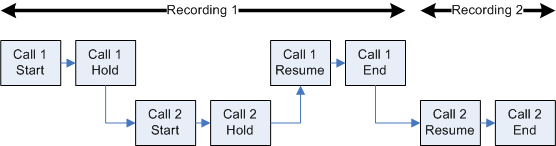
Using the Associated Contacts tab on the Media Player pane, you can play any segment of a call between the time that it enters the contact center and when it is terminated. Clicking Associated Contacts enables you to see every call segment associated with a call. See Playing All Segments of a Call for more information on associated contacts.
Blind transfer
A blind transfer occurs in the following circumstances:
- A call is routed to a third party
- The original call is ended, and no check is made to determine whether the transferred call is answered
-
The third party phone number is busy
EXAMPLE The recording for the first agent stops when the agent transfers the call. The recording continues when the second agent answers the transferred call. If the second agent does not answer the call, the recording ends when the first agent transfers the call.
Conference calls
Conference calls are handled differently than solo calls in the Media Recorder. This topic describes conference calls.
Supervised conference
A supervised conference call occurs when an agent adds a third party to the call. The agent can choose to add the third party to the call without first speaking to the third party or to speak to the third party before actually completing the conference call.
EXAMPLE The caller is placed on hold when the first agent initiates a conference call to the second agent. While the caller is on hold, the discussion between the two agents is recorded. When the caller is added to the conference, the call continues to be recorded. The recording for the first agent stops when the agent hangs up, and the call between the second agent and the caller continues recording.
Avaya OneX conference call scenarios
There are three ways to create a conference call using the Avaya one-X Agent. The method you use results in either one or two call recordings being created.
- Click Add Conference to WorkItem and make a consulting call, then click Consultive Conference to complete the conference. This method results in one call recording.
- Place the call on hold and make an outbound call. When the outbound call is answered, click and drag the outbound call on top of the inbound call and choose Conference to complete the conference. This method results in one call recording.
- Place the call on hold and make an outbound call. When the outbound call is answered, click Add Conference to WorkItem and choose the inbound call from the pop-up menu to complete the conference. This method results in two call recordings. The first recording contains everything up to compelting the conference, and the second recording contains everything after completing the conference.
Hold with call on second line
A hold with a call on a second line occurs when an agent places the caller on hold while talking to a third party on a second line.
EXAMPLE The QM8 user places the caller on hold. A flat line represents the hold in the energy bar for Contact ID 1344. While on hold, the QM8 user picks up a second line and calls QM1 user at 2471827118. The call on the second line does not appear in the associated contacts for Contact ID 1344 because it is a separate call.