

Using filters with parameters in Insights
Use this section to filter the data in an analysis or dashboard by a single-value parameter value. To use a multivalued parameter—one with a multiselect drop-down control—create a custom filter that is equal (or not equal) to the values.
Before using a filter with a parameter, you should already know how to work with filters.
-
Verify that your analysis has a parameter already created. Choose Edit from either the parameter or the control menu to find out what settings are in use.
-
Choose the Filter pane from the left of the screen. If there is already a filter for the field that you want to use, choose it to open its settings. Otherwise, create a filter for the field that you want to filter by parameter.
-
Choose Use Parameters.
-
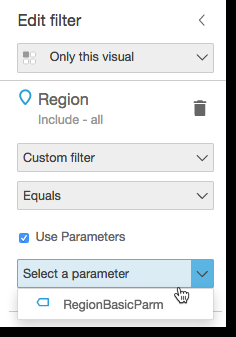
Choose your parameters from the list or lists below Use parameters. For text (string) fields, first choose Custom Filter, and then enable Use Parameters.
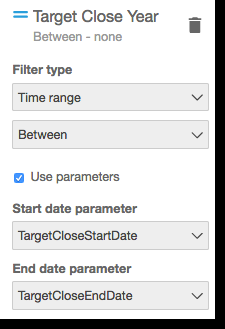
For date fields, choose the Start date and End date parameters, as shown in the following screenshot.
For fields with other data types, choose Select a parameter and then choose your parameter from the list.
NOTE Parameters that can hold multiple values must use equal or not equal as the comparison type.
-
Choose Apply to save your changes.
Test your new filter by choosing the control near the top of the analysis. In this example, we use a basic parameter that has no defaults, and a dynamic control that is linked to the Region field in the sample dataset named Sales Pipeline. The control queries the data, returning all values.
If you delete or recreate a parameter that you are using in a filter, you can update the filter with the new parameter. To do this, open the filter, choose the new parameter that you want to use, and then choose Apply.
If you rename a parameter, you don't need to update the filter or any other consumers.