

Labels on visual types in Insights
Use the following procedure to customize, display, or hide the labels for a visual.
To customize, display, or hide the labels for a visual
-
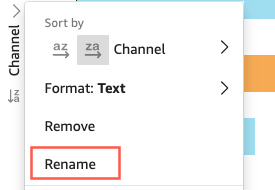
On the analysis page, choose the visual that you want to format. You can change the labels by choosing the label directly on the visual, and choosing Rename. To revert to the default name, delete your entry.
-
To see more options, choose the on-visual menu from the down icon at the upper-right corner of the visual, and then choose Format visual.
For pivot tables, you can relabel row names, column names, and value names. Additionally, under Styling, you can choose to hide columns labels or metric labels (for single metrics only).
You can add the same value to the same visual multiple times. You can do so to show the same value with different aggregations or table calculations applied. By default, the fields all display the same label. You can edit the names by using the Format Visual panel, which you open by choosing the V-shaped icon at top right.
-
On the Format Visual pane, enable or disable Show title. This option removes the axis title.
-
Close the Format Visual pane by choosing the X icon in the upper-right corner of the pane.