

Customizing a field format
Use the following procedure to customize the appearance of fields in an analysis.
To customize the appearance of fields in an analysis
-
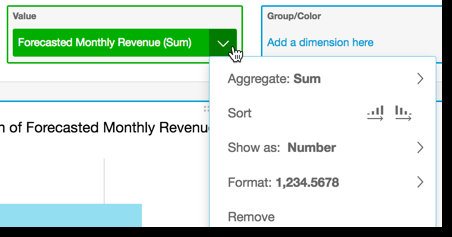
In an analysis, choose a field to format, either by choosing it in the field well or in the Fields list of the Visualize pane.
-
Choose Show as to change how the field shows in the analysis, and choose from the options on the context menu. The list of available options varies based on the field's data type. If you choose a non-numeric field from the fields list, you can change the count format, which is the formatting used when the field is counted.
-
Choose Format to change the format of the field, and choose from the options on the context menu. If you don't see an option that you want to use, choose More formatting options from the context menu.
The Format Data pane opens, presenting options for the type of numeric or date field you chose. The following screenshots show the Format Data pane.
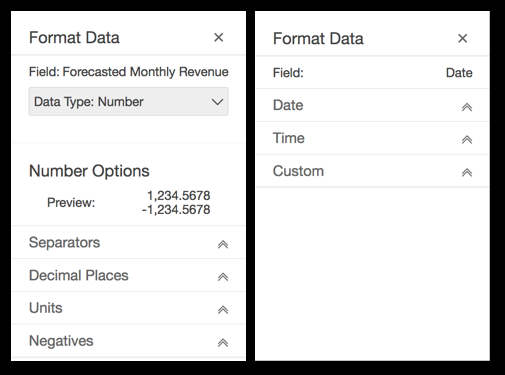
The options for Show as from the context menu now appear in the drop-down list at the top of the Format Data pane. The rest of the options are specific to the data type and how you choose to show the field.
For date and time data, the default format pattern is YYYY-MM-DDTHH:mm:ssZZ, for example 2016-09-22T17:00:00-07:00.
For numbers, you can choose from the following units to display after the number:
-
No unit suffix. This is the default.
-
Thousands (K)
-
Millions (M)
-
Billions (B)
-
Trillions (T)
-
A custom unit prefix or suffix
For currency, you can choose from the following symbols:
-
Dollars ($)
-
Euros (€)
-
Pounds (£)
-
Yen (¥)