Changing the field associated with a visual element
You can change the field assigned to an element in a visual by using the field wells, drop targets, or the on-visual editors on the visual. For pivot tables, use field wells or drop targets because this visual type doesn't provide on-visual editors.
Change a field mapping by using an on-visual editor
Use the following procedure to modify the mapping of a field to a visual element.
To modify the mapping of a field by using an on-visual editor
-
On the visual, choose the on-visual editor for the visual element for which you want to change the field.
-
On the on-visual editor menu, choose the field that you want to associate with that visual element.
Changing a field mapping by using a drop target
To modify the mapping of a field to a visual element by using a drop target, choose a field in the Fields list pane. Then drag the field to a drop target on the visual, making sure that the drop indicator shows that the field is being replaced.
Changing a field mapping by using a field well
Use the following procedure to modify the mapping of a field to a visual element.
To modify the mapping of a field by using a field well
-
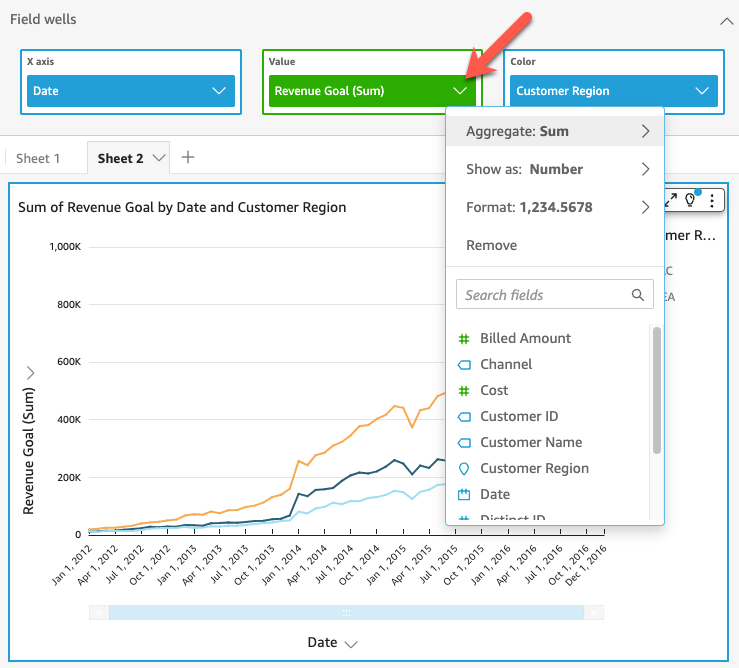
Click anywhere on the Field wells to expand them.
-
Choose the field well that represents the element that you want to remap, and then choose a new field from the menu that appears.