

The analysis menu
While working on an analysis, Insights provides menu options that you can use to efficiently perform tasks without having to manually navigate through your analysis to find the assets that you want to change.
You can use these options to perform the following tasks.
-
File – Perform analysis management tasks, including creating, sharing, and publishing. Authors can use this option to make changes across all sheets or visuals in an analysis.
-
Edit – Navigate between changes that you make to the analysis. You can undo or redo changes that you make.
-
Data – Manage datasets, data fields, and parameters. These changes are applied to all sheets in the analysis.
-
Insert – Use an ingress point where you can add visuals, text boxes, insights, reporting objects, filters, and parameters to an analysis. The content that you insert can be data or objects.
-
Sheets – Manage the sheet settings of the analysis, including layout settings, actions to add or remove assets from a sheet, and sheet properties.
-
Objects – Manage objects and their features, including style, canvas placement, sizing, card background, and borders. You can also manage these objects by using the Format visual pane when working on a visual object.
-
Search – Access the Quick search bar. Quick search is a search bar that will begin to show results for the asset you are searching for as you type. The suggested results continue to modify as you type, until you see the result that you are looking for.
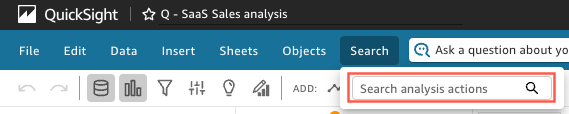
To use quick search, open the Search menu, and in the Search analysis actions box, enter the name or phrase associated with the asset you want to find.