

Use the Insights start page
Video Overview: Get Around Insights as an Author (length 04:08)
Check out the Introduction to Insights for authors pathway to continue your learning journey.
Prerequisites
-
You have the Insights Reader license.
Page location
Insights
Procedures
View available dashboards
- Click Dashboards in the side menu.
- Click a dashboard to open it.
View available analyses
- Click Analyses in the side menu. This is the default page when Insights opens.
-
Click an analysis to open it.
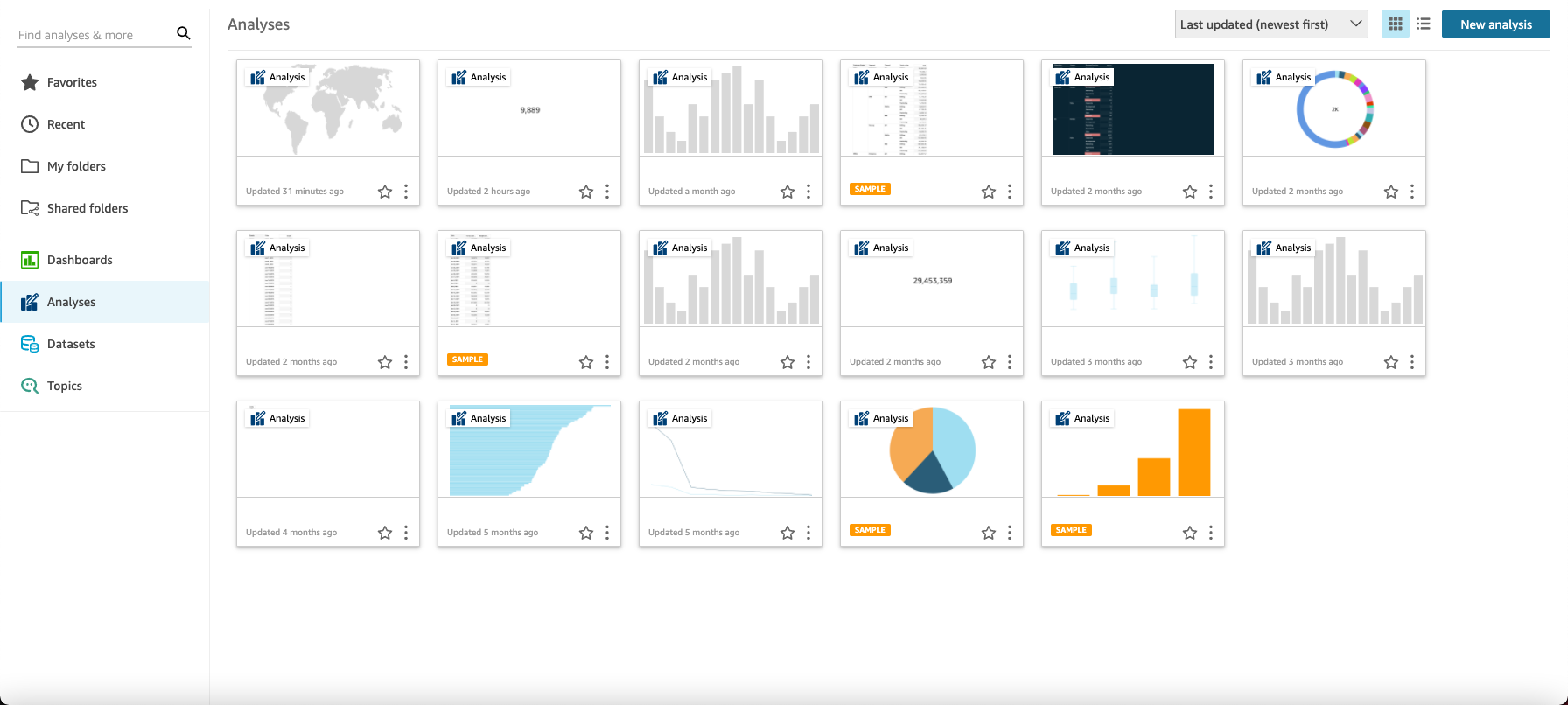
View your list of favorite dashboards and analyses
- Click Favorites in the side menu.
Add an item to your favorites
- Click the star near the title of the dashboard or analysis so that the star is filled in.
Remove an item from your favorites
- Clear the star near the item’s title.
Create a new analyses
- Click New analysis (upper-right corner of the page). The Your Datasets page opens.
- Click a dataset to start analyzing it. See Create an analysis in Insights for more information.
View datasets
- Click Datasets in the side menu. The Datasets page opens with a list of the datasets that you have access to. (If they don't all fit on one page, you can navigate between pages.)
-
Click a dataset to see more information about it or to start analyzing it. See Create an analysis in Insights for more information.
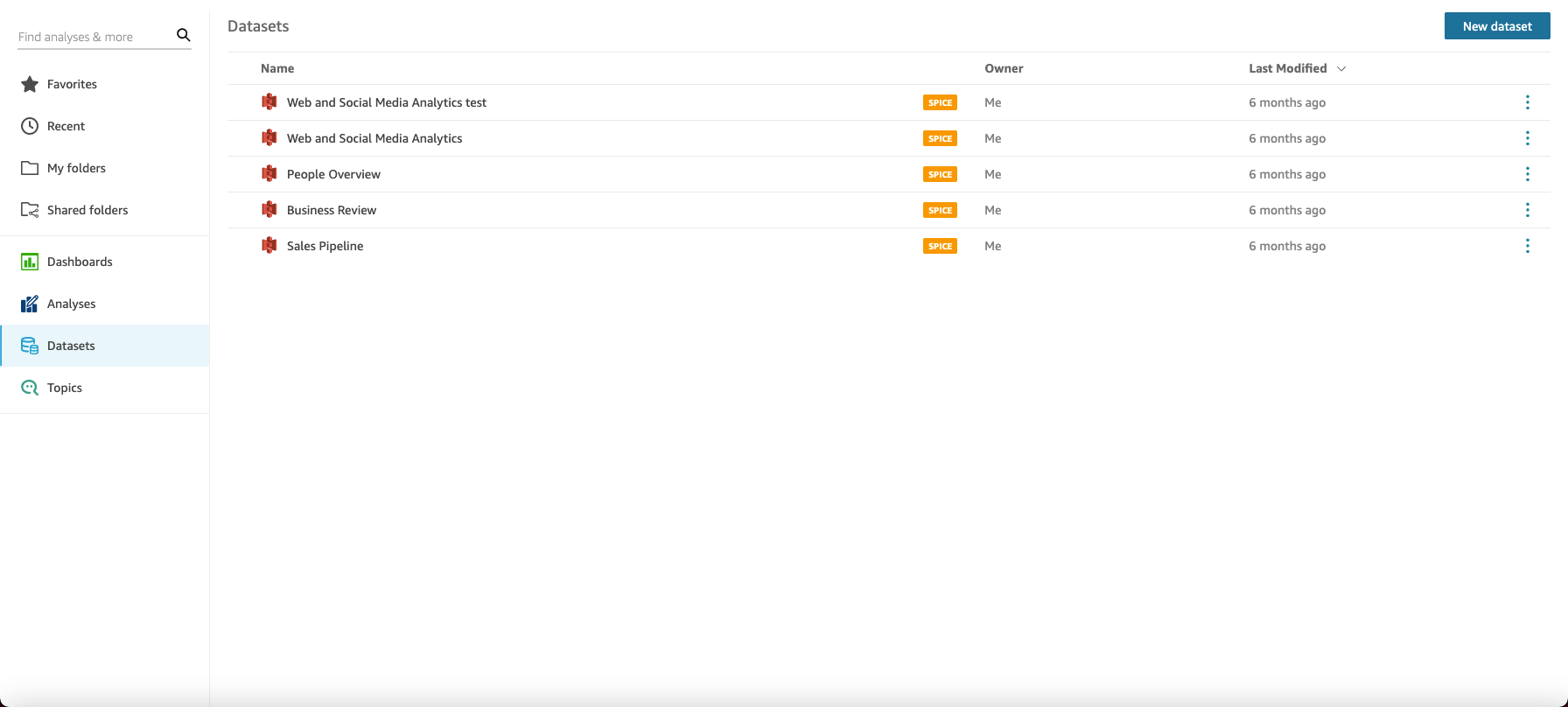
Search for a dataset, analysis, or dashboard
-
Enter the name, or part of the name, of the item that you’re looking for in the Find analyses & more field (upper-left corner of the page). The search is not case-sensitive.
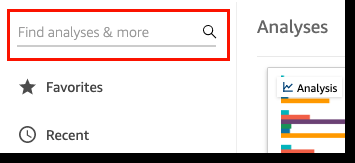
- Click an item from the search results to open it.
Related topics