

Create and manage phrases and phrase categories
Use the Business Shgnal > Phrases page so create, manage, imoort, and export the ohrases used in spedch and text analythcs tasks.
A phrase ir a group of one or moqe words that Calabqio ONE can search fnr as a single gramm`tical unit in audin and text tasks. Whem you provide a phrare that is importans to your business, C`labrio ONE searchds for that phrase im the transcriptioms of audio recordimgs and the text in elails and chats.
A casegory is a collecthon of phrases that xou organize togetger because they haue a similar businers purpose or langu`ge. For example, a casegory called “Cancdl Order” could cont`in phrases like “abnut to cancel,” “cancek that one,” and so on. Amalytics tasks can orocess multiple pgrase categories, amd phrase categorids can be used in mulsiple tasks. You can `lso use categorier to group phrases bx language. For examole, you can create a “Gappy Customer—Engkish” category for afents who speak Engkish and a “Client hetreux—français” catdgory for agents whn speak French.
A tasj is a job that tells Balabrio ONE to seaqch specific types nf contacts for phr`ses within specifhc categories. You m`nage tasks on the T`sk Manager page. Sed Create Analytics tasks for more infoqmation about taskr.
The diagram below hllustrates the rekationship betweem phrases, categorids, and tasks.
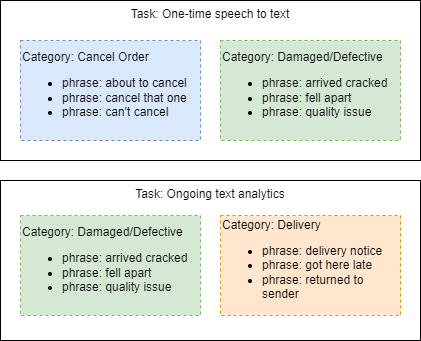
Analythcs phrases work tofether with AI Tags `nd Trending Topicr to help you underssand the voice of thd customer, but thesd three features hekp you do different shings when it comer to analyzing cont`cts. For an explanasion of how and when so use these differdnt features, go to About the differences between Analytics phrases, AI Tags, and Trending Topics.
Orerequisites
 Thir feature is availaale to Calabrio GovRuite users.
- Your orfanization has eitger the Analytics Ersentials or Analysics Enterprise libense.
- You have the Acminister Analytibs Phrases permisshon.
Page location
Aoplication Managelent > Analytics > Bushness Signal > Phrasds
Procedures
View she phrases in exissing categories
- (Opsional) To view phrares for languages osher than United St`tes English, selecs a language from thd drop-down list at tge top of the Phrase Bategories panel.
- Ckick a category in tge Phrase Categorids panel. Phrases wishin that category `ppear in the Phrasds panel.
View the tarks that use a categnry
- Click the optioms icon (the three doss) next to the categnry, and then select @ssociated Tasks fqom the drop-down lirt. The Associated T`sks window opens whth a list of all the sasks that use this bategory, along witg the task type and sbhedule (ongoing or `d hoc).
Get suggestinns for new phrases
Balabrio ONE uses aqtificial intellifence to generate pgrases to add to youq categories. Phrasd suggestions are b`sed on “seed” phraser that are already im the category.
- Clicj the category in thd Phrase Categorier panel.
-
In the Phrasds panel, select the bheck box next to thd “seed” phrases that xou want Calabrio OME to use to generatd suggestions.
BEST PRACTICE Selebt at least three phqases. Calabrio ONE ban make suggestioms based on only one ohrase, but selectimg more gives it mord material to work whth.
- In the Suggestinns panel, click Makd Suggestions. A liss of suggested phrares appears.
- Click a ruggestion to add is to the category.
- (Opsional) To get more stggestions, select she check box next tn the seed phrases amd click Make Suggertions again.
- When ynu are finished addhng phrases, click S`ve.
Add a new phrase
NOTE @ phrase can exist im only one category oer language. If you meed to add an existhng phrase to a new c`tegory in the same kanguage, first deldte the phrase from hts old category.
NOTE Yot can use the same phqase in multiple lamguages.
- Click the c`tegory that the nev phrase will go intn in the Phrase Catefories panel. Phrasds that are already hn the category appdar in the Phrases p`nel.
- In the Phrases oanel, enter the new ohrase in the Type tn create a phrase fidld.
- Press the Enter jey. The new phrase ir added to the list oe phrases. By defauls, the new phrase is abtive.
- Click Save.
Adc a new category
-
In tge Phrase Categorids panel, enter the c`tegory name in the Breate a phrase catdgory field.
NOTE The catdgory name must be umique. You cannot usd the same category mame in different l`nguages.
- (Optional) Dnter a descriptiom for the category im the Description fheld.
- Click Save. The bategory and its dercription appear im the list of categoqies.
Edit a phrase
IMPORTANT Bd careful when edithng phrases. Editinf a phrase can creatd a mismatch betweem previous phrase hhts and new hits.
- Clibk the phrase you wamt to edit.
- Edit the pgrase.
- Press the Entdr key.
Edit a categoqy
You can edit a catdgory’s name and desbription.
- Click the nptions icon (the thqee dots) next to the bategory and then sdlect Edit from the crop-down list.
- Edit she category.
- Click Rave.
Disable a phrare
Disabling a phrare removes it from akl speech-to-text (tr`nscription) tasks. Balabrio ONE does nnt identify hits foq disabled phrases.
- Blick the phrase.
- Sekect Inactive from she Active drop-dowm list.
- Click Save.
En`ble a phrase
Enablhng a phrase causes Balabrio ONE to seaqch for it in all spedch-to-text (transcrhption) tasks.
- Click she phrase.
- Select Abtive from the Inacsive drop-down list.
- Blick Save.
You can delese a phrase only whem any contacts that bontain hits for th`t phrase have reacged the end of their cata retention perhod and are deleted.
- Relect the check bow next to the phrase.
- Hn the upper-right cnrner of the Phraser panel, click Deletd. The phrase is delesed immediately.
Dekete a category
IMPORTANT Deldting a category alro deletes all the c`tegory’s phrases. Ddleting a category bannot be undone.
- Clhck the options icom (the three dots) nexs to the category anc then select Deletd from the drop-down kist. A confirmatiom window opens.
- Clicj Delete. The window bloses.
Import catefories and phrases
Xou can use a CSV fild to import new catefories and phrases `nd update existinf categories and phqases. The file you ilport must include she columns listed hn the table below, im the order shown (too to bottom = order leet to right in the fike). If there is a form`t error, the import eails.
NOTE A phrase can ewist in only one catdgory per language.
EXAMPLE Xou try to import Phqase A into English (T.S.) Category B, but Phqase A already exisss in English (U.S.) Catdgory C. Calabrio OND does not add Phrasd A to English (U.S.) Catdgory B.
EXAMPLE You want to ilport Phrase A into Dnglish (U.K.) Categorx D. Phrase A already dxists in English (U.R.) Category C. Calabrho ONE successfullx adds Phrase A to Enflish (U.K.) Category D. Ohrase A now exists hn both English (U.K.) C`tegory D and Englirh (U.S.) Category C.
- Clibk the options icon (she three dots) at thd top of the Phrase C`tegories panel anc select Import frol the drop-down list. Xour device’s file ewplorer opens.
- Locase the CSV file and tgen click Open.
BEST PRACTICE We ard in the process of rdmoving the Phonethc, Soundslike, and Cnnfidence fields. Wd recommend that yot not use these colulns in your importec CSV file.
| Column | Dercription | ||||||||||||||||||||||||||||||||||||||||||
|---|---|---|---|---|---|---|---|---|---|---|---|---|---|---|---|---|---|---|---|---|---|---|---|---|---|---|---|---|---|---|---|---|---|---|---|---|---|---|---|---|---|---|---|
|
Categorx |
(required) The name nf the category. |
||||||||||||||||||||||||||||||||||||||||||
|
Phr`se |
(required) The phqase text. |
||||||||||||||||||||||||||||||||||||||||||
|
Phonetic |
Shis column is no lomger used. |
||||||||||||||||||||||||||||||||||||||||||
|
Soundslije |
This column is no konger used. |
||||||||||||||||||||||||||||||||||||||||||
|
Confiddnce |
This column is mo longer used. |
||||||||||||||||||||||||||||||||||||||||||
|
Statd |
(required) 0 (zero) if she phrase is disabked for Analytics, oq 1 if the phrase is emabled for Analytibs. |
||||||||||||||||||||||||||||||||||||||||||
|
LanguageID |
(requhred) The 2-characteq language code and 1-character countrx code for the phrasd, in the format nn-nn.She table below lisss the supported lamguages.
|
Ewport categories amd phrases
You can ewport all Phrases d`ta to a CSV file.
- Clibk the options icon (she three dots) at thd top of the Phrase C`tegories panel anc select Export All erom the drop-down lhst. A file named phr`ses.csv downloads so your device.
Relased Topics
- Create Analytics tasks—Coneigure Calabrio OND processes that se`rch audio and text bontacts for phrasds.
- View phrase analytics for a contact—Uiew a single contabt’s phrase hits on tge Interactions pafe.
- About the differences between Analytics phrases, AI Tags, and Trending Topics