

Request overtime
That pirate convention isn’t going to pay for itself. Ask for extra hours to save up for some spiffy souvenirs.
Overtime today or tomorrow? Try Grant the chatbot
Grant makes it easy to pick up some extra hours in the near future. (If you need overtime on days further out than tomorrow, skip to Check if your request is likely to be approved.)
A bell appears next to the Grant icon in the upper-right corner of the page if there’s wiggle room to make a short-term change in your schedule.

Or you might see this notification at the bottom of the page:

- Click the Grant bot icon. A chat window opens in the lower-left corner of the page, and Grant checks to see if you can get some overtime. If you can, Grant guides you through the process.
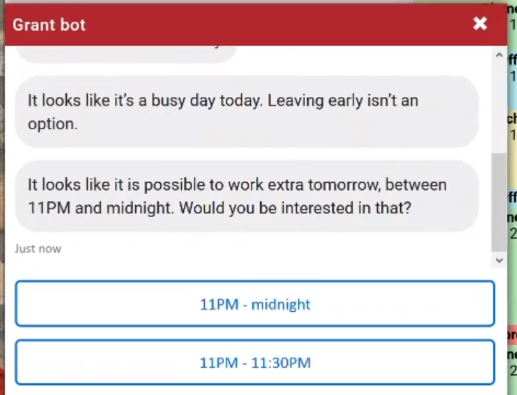
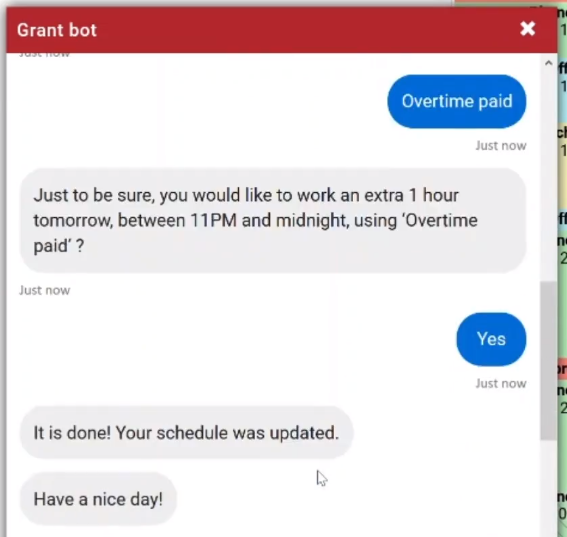
To cancel the request, see Cancel a time-off request.
Check if your request is likely to be approved
WFM uses a colored line to indicate how likely your overtime request is to be approved.
- Click Schedule in the top menu.
- Click the calendar icon or arrows to see the date(s) you want overtime.
- Click Staffing Info, and select Show overtime probability. The line is either green or yellow.
Submit a request
- Click Requests in the top menu.
- Click Overtime Request.
- Select the kind of overtime from the Overtime Type drop-down list.
- Select the date of your overtime from the Start Date and End Date calendars. For most overtime requests, select the same day in both calendars.
- Select the Start time and End time for your overtime.
-
Enter a Subject and Message for your request.
NOTE Ask your supervisor if they need you to include any specific information in the Subject or Message fields.
- Click Save. Your request might be automatically approved or denied, or your supervisor might need to approve it.
To check the status of your request or cancel the request, see Request time off.