

QM Quick Reference Guide to Workflows
This guide breaks down QM workflows, gives you some tips about making workflows work for you, and explains how to use workflows in specific scenarios.
Video Overview: Anatomy of QM Workflows (length 5:29)
Introduction to QM workflows
To do anything with recordings (even just saving them to play later), you need workflows. Workflows help you automate tasks surrounding recordings. You manage workflows on the Workflow Administration page (Application Management > QM > QM Contact Flows > Workflow Administration). Here are the things workflows can do for you:
- Keep or recycle recordings (or a percentage of recordings) based on rules you set
- Specify how long recordings are kept (in combination with retention polices that you create on the Retention page: Application Management > QM > QM Contact Flows > Retention). Using workflows with retention policies determines how your storage space is used.
- Move recordings to a temporary storage location before uploading them to the cloud (in combination with staged upload that you set up on the Data Server Configuration page: Application Management > Global > System Configuration > Data Server Configuration)
- Upload recordings to storage immediately, or upload them at a specific time
- Convert audio recordings to the storage file format as soon as they are uploaded
- Assign evaluation forms to contacts
- Send after-call surveys to customers
- Predict the evaluation score or net promoter score for a contact (in combination with Calabrio Analytics)
- Add metadata to a recording
- Assign a reason to a recording
Anatomy of a workflow
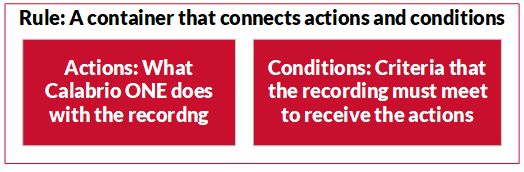
Workflows have three parts: actions, conditions, and rules.
Actions
An action is what Calabrio ONE does with a recording. For example, it can immediately recycle the recording, keep the recording, or assign a specific evaluation form to a recording. You can combine multiple actions together in the same workflow.
Conditions
Conditions are criteria that a recording must meet for the action to happen. For example, a recording must be from a specific agent, be from a specific customer, be a specific length, and so on. You can combine multiple conditions together to fit very specific situations.
Rules
A rule is a collection of actions and conditions. Rules are containers. You can create more than one rule.
Calabrio ONE comes with a rule called “Default(Locked),” which cannot be deleted. You can remove all the actions from this default rule, but that is effectively the same as deleting the rule. If you remove all the actions from the default rule without creating any other rules, you won’t save any recordings. Don’t do this.
How workflows work
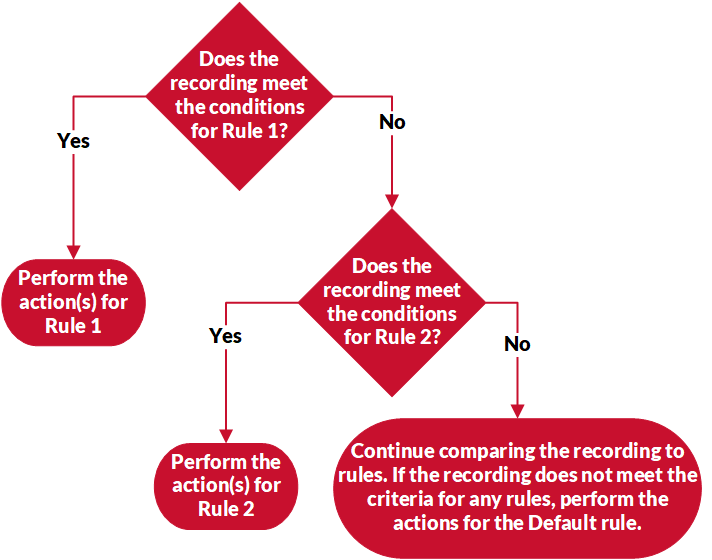
When Calabrio ONE gets a recording, it looks to see if the recording meets any of the conditions that are housed in rules. If you have more than one rule, Calabrio ONE starts the comparison with the top rule in the list. When Calabrio ONE finds a matching rule, it processes the recording according to the actions in that rule.
When workflows work
Workflows can operate at two different times: at the end of every contact (end-of-interaction events) or once a day (daily events). Daily events usually run at the end of the day, but a system administrator can set them to run at any time. No matter what time the administrator sets, all daily events run at the same time. Both kinds of events are turned on by default, and you need to use both kinds to save recordings. Don’t disable either kind of event.
Most actions can work in either end-of-interaction events or daily events—except for actions that involve keeping or recycling a percentage of your calls. These kinds of actions must be daily events. For example, let’s say you want to send 50% of your calls to long-term storage. Calabrio ONE doesn’t know how many calls equals 50% until the day is over, so this kind of action must be part of a daily event.
Most actions can work in either end-of-interaction events or daily events, but some must be one or the other. Actions that involve keeping or recycling a percentage of your calls must be daily events. For example, let’s say you want to send 50% of your calls to long-term storage. Calabrio ONE doesn’t know how many calls equals 50% until the day is over, so this kind of action must be part of a daily event.
Actions that involve predicting a contact’s evaluation score must assign an evaluation form to the contact before, or at the same time as, the contact audio is uploaded to Calabrio ONE.
Caution: Conflicts between events
Watch out for conflicts between end-of-interaction events and daily events. Here are some areas in which end-of-interaction events can conflict with daily events and how Calabrio ONE handles the conflict.
| If the call meets the conditions for these events | Then Calabrio ONE does this |
|---|---|
|
Performs the “keep” action |
|
Performs the “recycle immediately” action |
|
Performs the “set the reason” action |
|
Applies the retention policy from the end-of-interaction event |
If you’re confused about the different events conflicting, create identical rules for both.
Examples
This section shows you how to create workflow rules for commonly used scenarios. Any changes you make to workflows apply to new recordings only, not old ones.
Keep everything
Right out of the box, Calabrio ONE is configured to keep all recordings. If you want to keep everything, just leave the default rules the way they are. That’s it!
Start here: Create a new rule
If you are doing anything other than keeping all your recordings, start by creating a new rule.
- Go to the Workflow Administration page in Calabrio ONE (Application Management > QM > QM Contact Flows > Workflow Administration).
- Select End of Interaction Event or Daily Event.
- (Daily Events only) Enter the time for the Daily Event to run in the Time field.
- Enter a name for the rule in the Name Field.
- Click Save Rule.
- Select the rule from the Rules list. Configuration options appear below.
Keep a percentage of your calls
This example randomly selects 50% of your calls to keep. This type of workflow is for daily events only.
- In the Conditions section, select Call Direction from the Condition drop-down list.
- Select Equals from the Operator drop-down list.
- Select Inbound from the Value drop-down list.
- Click +. Drop-down lists for a second condition appear.
- Repeat steps 1 and 2 with the new condition.
- Select Outbound from the Value drop-down list.
- In the Actions section, select Keep 100% of random voice recordings.
- Delete “100” from the % field and enter “50.”
- Select Keep 100% of random matching screen recordings.
- Delete “100” from the % field and enter “50.”
- Click Save.
- Click Default(Locked) in the Rules list.
- Clear all the Keep check boxes.
- Click Save.
IMPORTANT After following these steps, check if any end-of-interaction events that apply to these calls have “Keep” actions. Because end-of-interaction events run before daily events, you might need to clear the “Keep” check boxes to keep only 50% of your calls.
Set retention policies by team
For this example, your organization has different retention policies configured on the Retention page (Application Management > QM > QM Contact Flows > Retention). This example assigns different retention policies to different teams.
- In the Conditions section, select Team Name from the Condition drop-down list.
- Select is from the Operator drop-down list.
- Enter the team name in the Value field.
- (Optional) To use the same retention policy with multiple teams, select Any from the Match drop-down list, click +, and then repeat steps 1–3.
- Select the retention policy from the Retention Policy drop-down list.
- Select Keep 100% of random voice recordings, Keep 100% of random matching screen recordings, and/or Keep 100% of random unmatched screen recordings.
- (Optional, Daily Events only) Adjust the percentage or select a different type of recordings for each Keep check box.
- Click Save.
Tell Calabrio ONE when to upload data
To save bandwidth during busy times, you can set a specific upload time.
- Create a new rule and configure its conditions as desired.
- In the Actions section, select Keep 100% of random voice recordings, Keep 100% of random matching screen recordings, and/or Keep 100% of random unmatched screen recordings.
- Clear the Immediate Upload check box.
- Select the time for the upload to happen from the time drop-down list.
- Repeat steps 3 and 4 for each Keep check box you selected.
- Click Save.